> ## Documentation Index
> Fetch the complete documentation index at: https://docs.casebender.com/llms.txt
> Use this file to discover all available pages before exploring further.
# Case Statuses
> Configure and manage custom case statuses to track the lifecycle of cases in your security operations.
## Overview
The Case Statuses section enables you to create and manage custom status definitions for your cases. This feature helps you track the progression of cases through your incident response and investigation workflow, ensuring consistent case management across your organization.
 ## Managing Case Statuses
### Creating a New Status
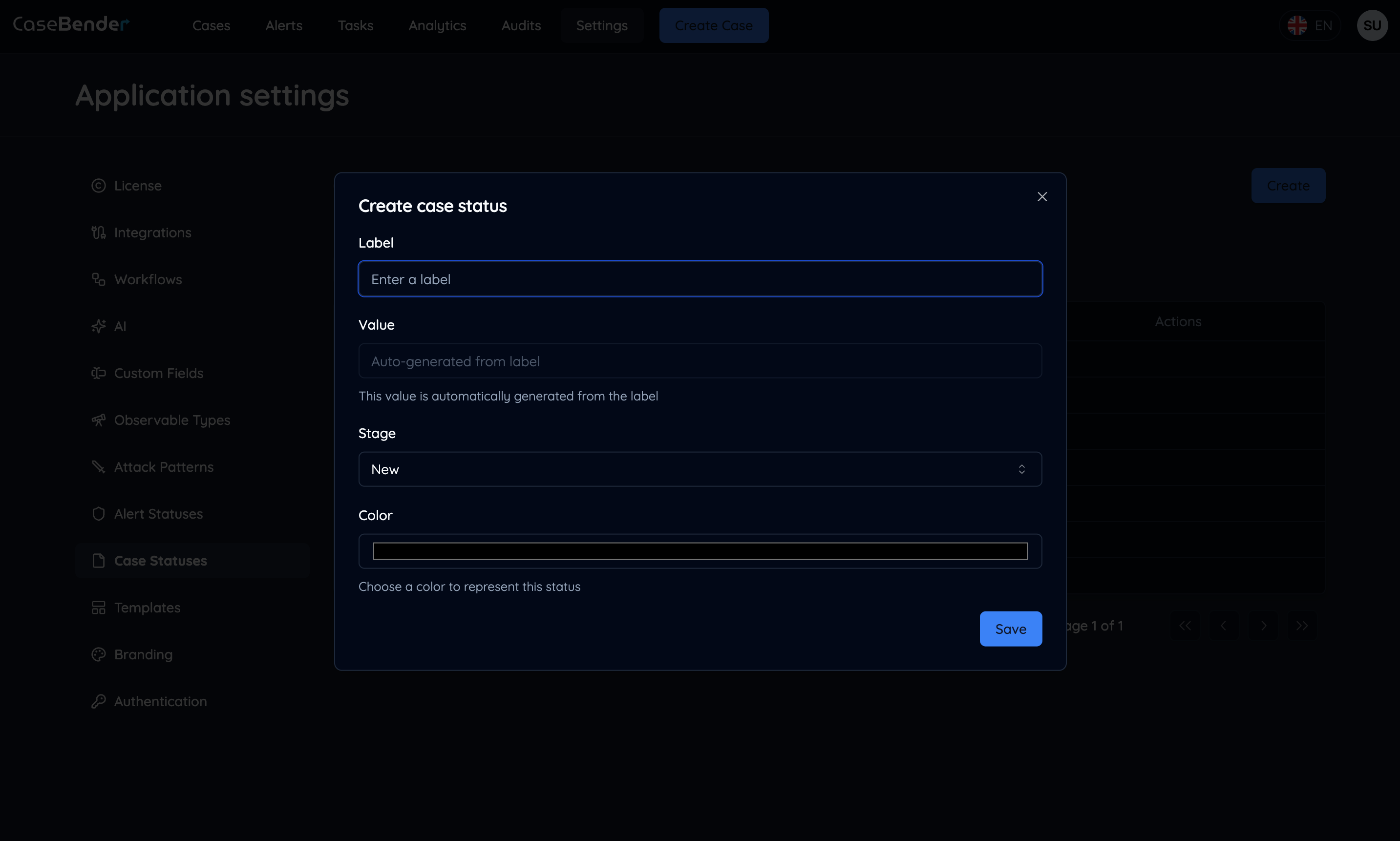
Click the "Create" button to add a new case status:
## Managing Case Statuses
### Creating a New Status
Click the "Create" button to add a new case status:
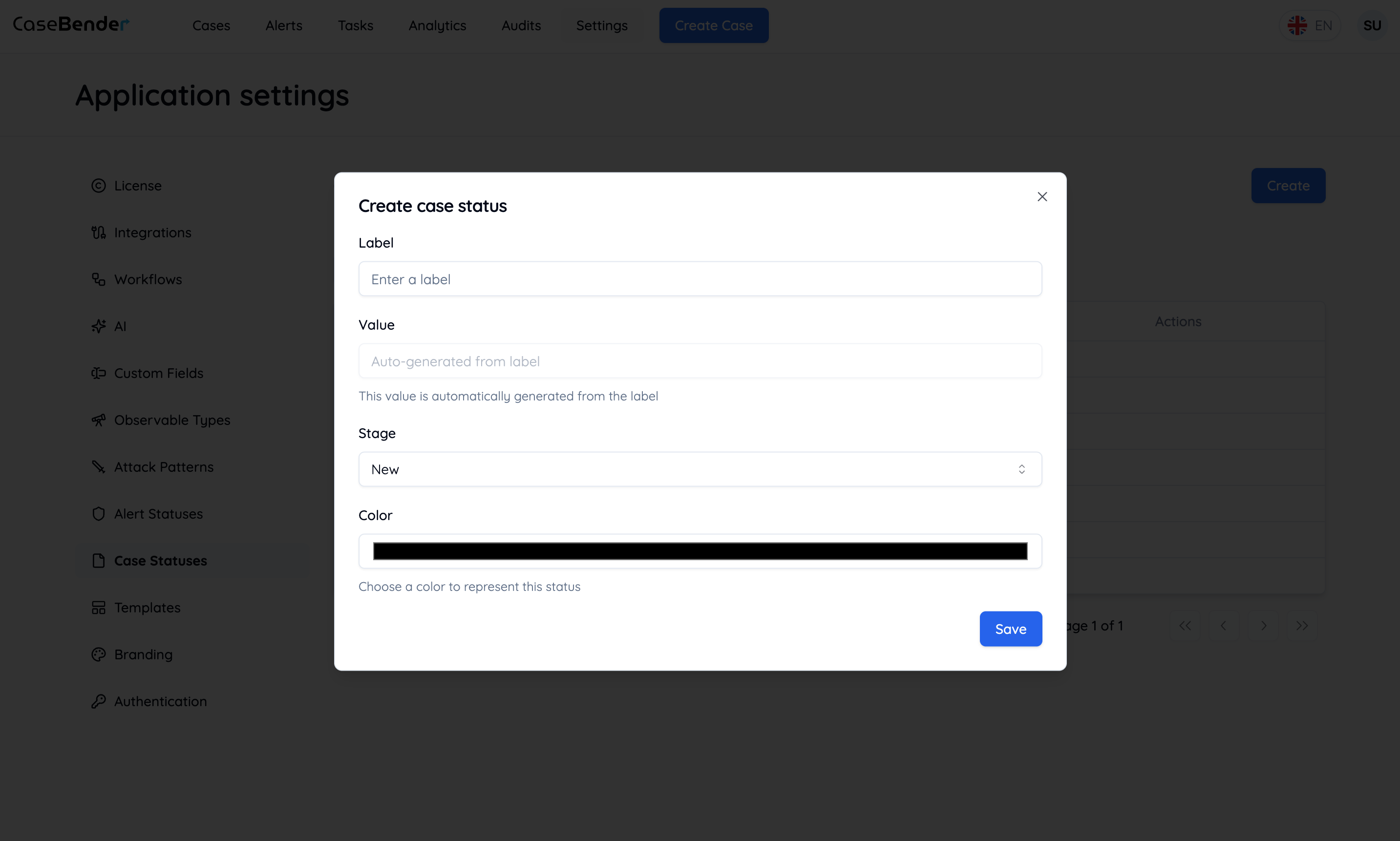
 Configure the basic status information:
* Status name
* Description
* Color indicator
* Icon selection
* Category/Phase
### Configuring Status Details
Provide comprehensive configuration for your case status:
Configure the basic status information:
* Status name
* Description
* Color indicator
* Icon selection
* Category/Phase
### Configuring Status Details
Provide comprehensive configuration for your case status:
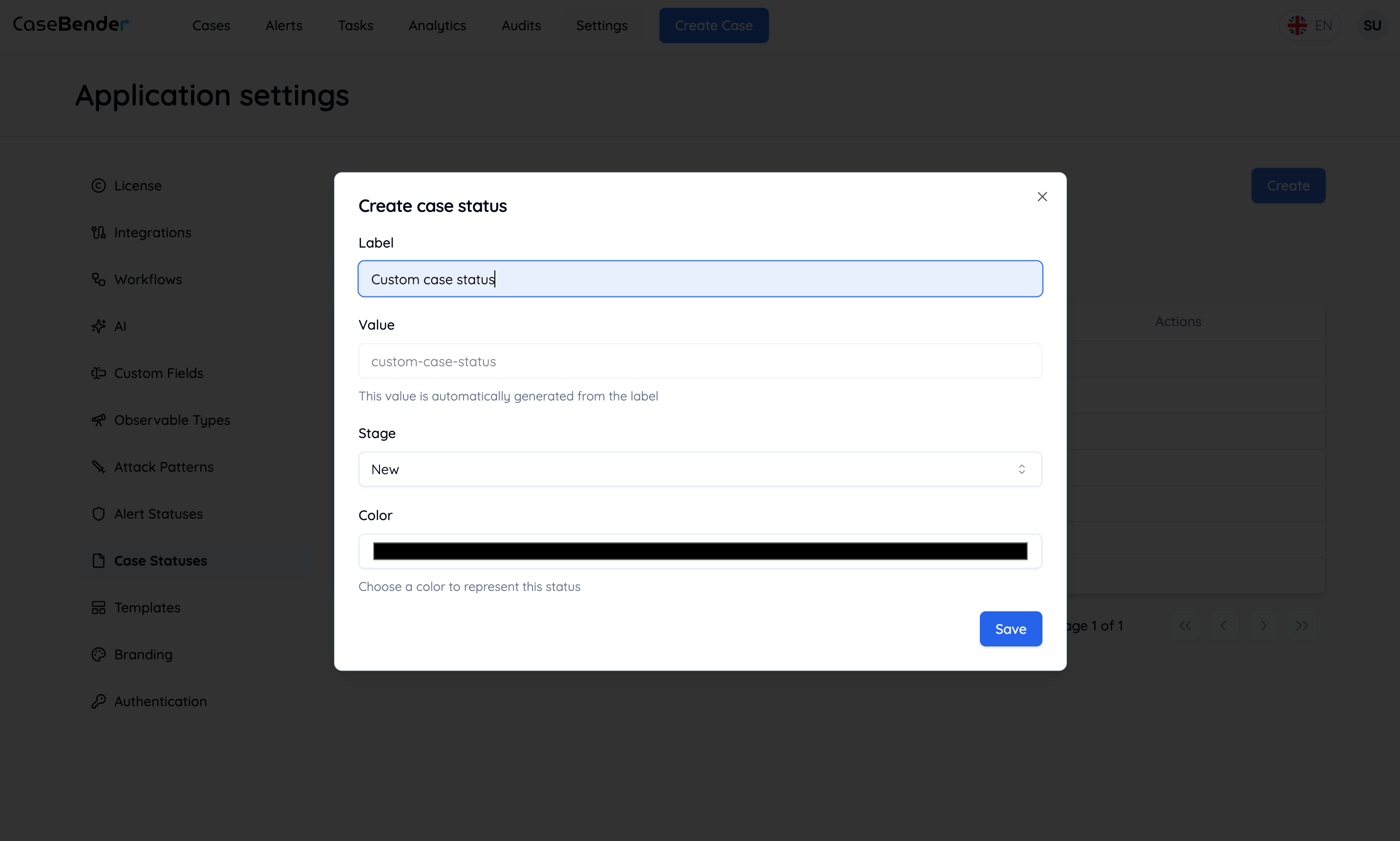
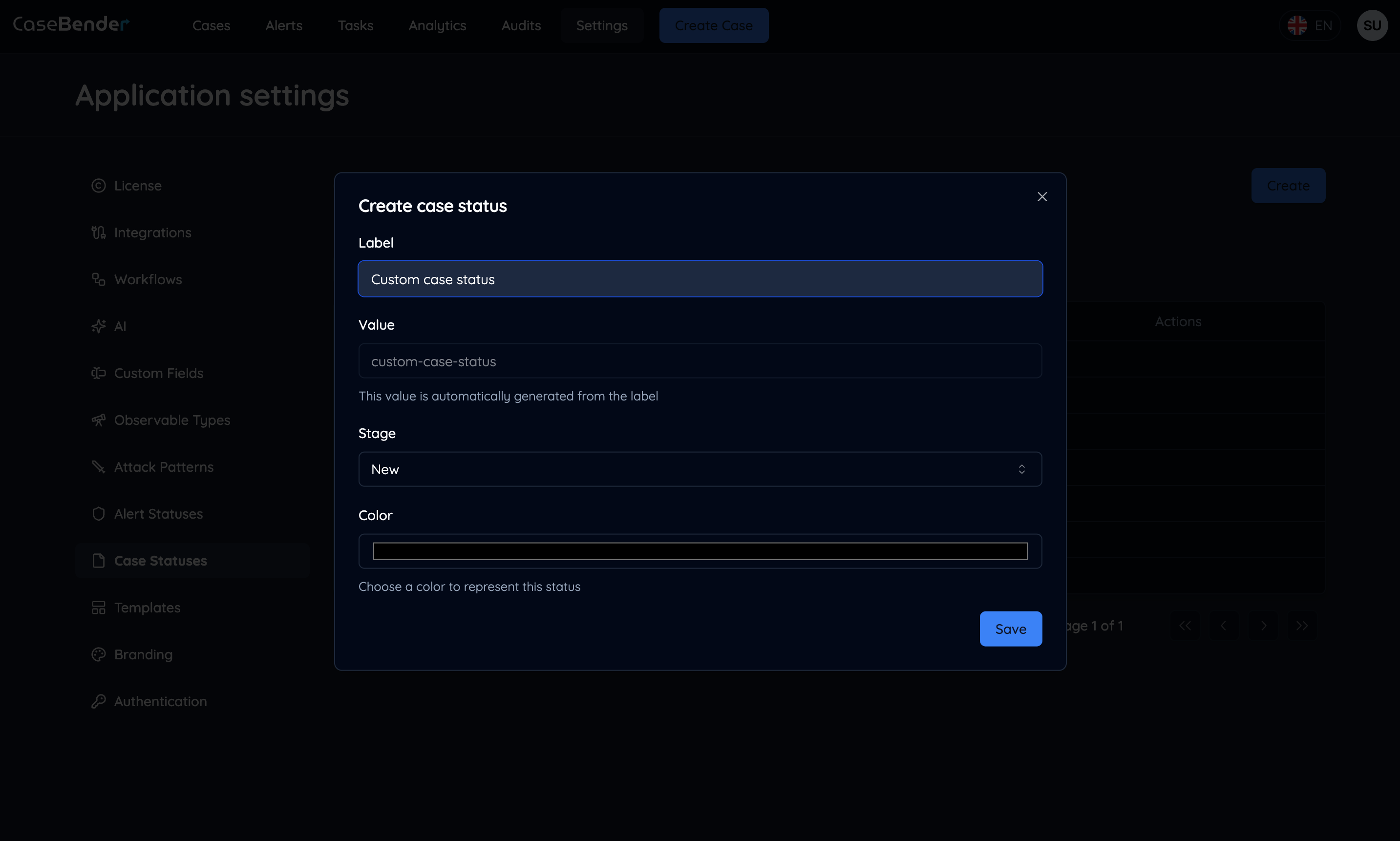 Define detailed settings:
* Status behavior
* Workflow rules
* Required fields
* Team permissions
### Status Management
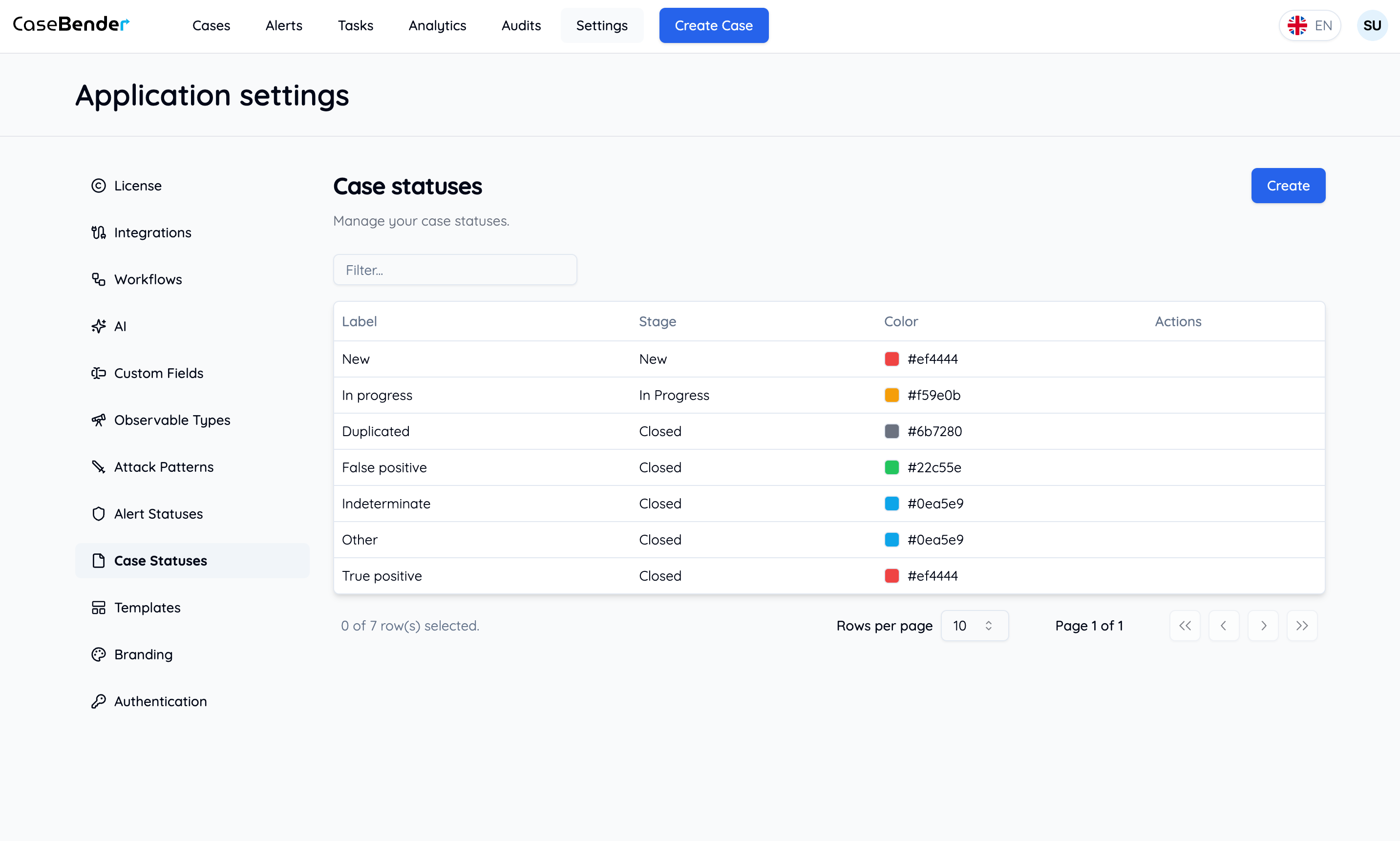
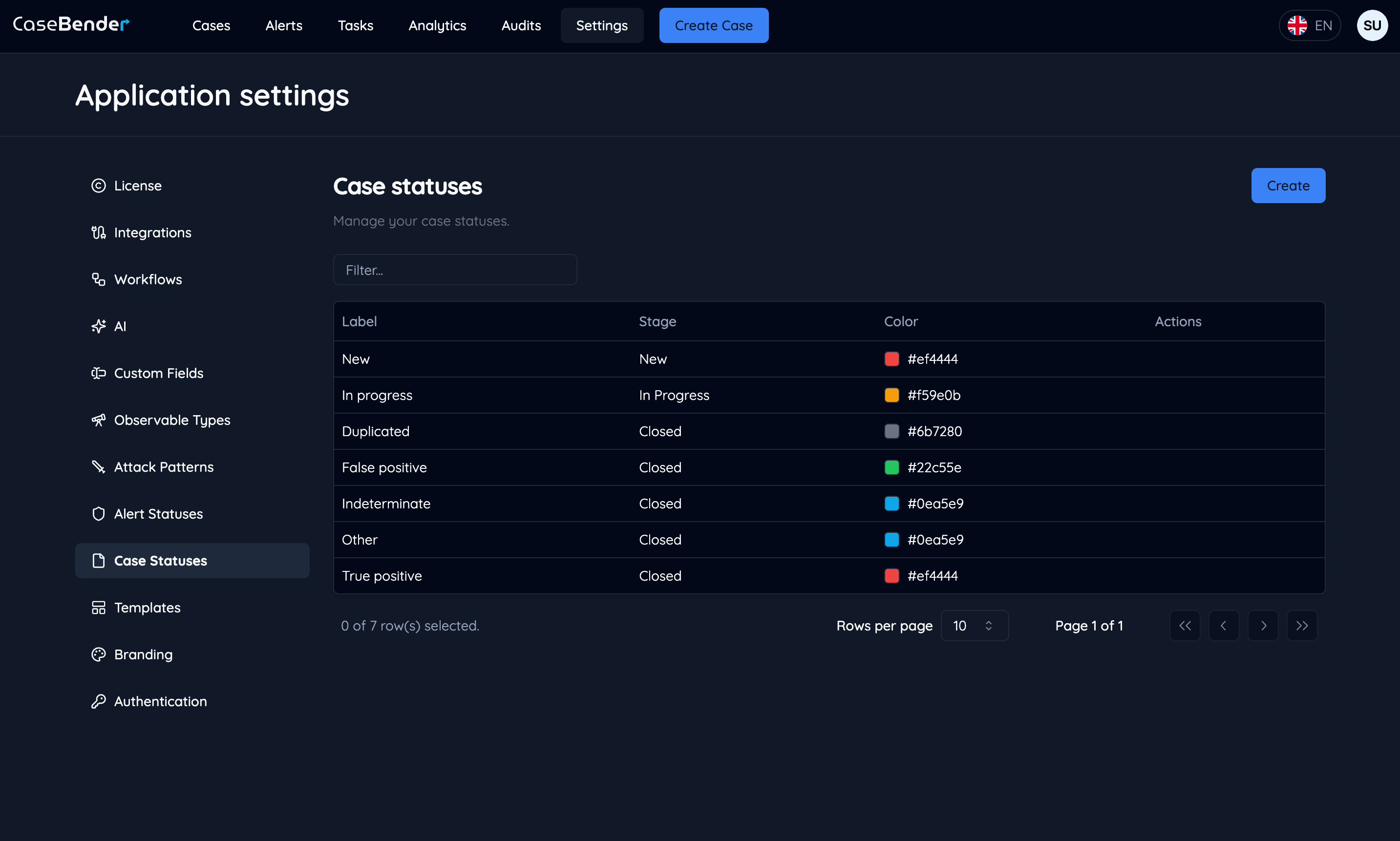
View and manage your configured case statuses:
Define detailed settings:
* Status behavior
* Workflow rules
* Required fields
* Team permissions
### Status Management
View and manage your configured case statuses:
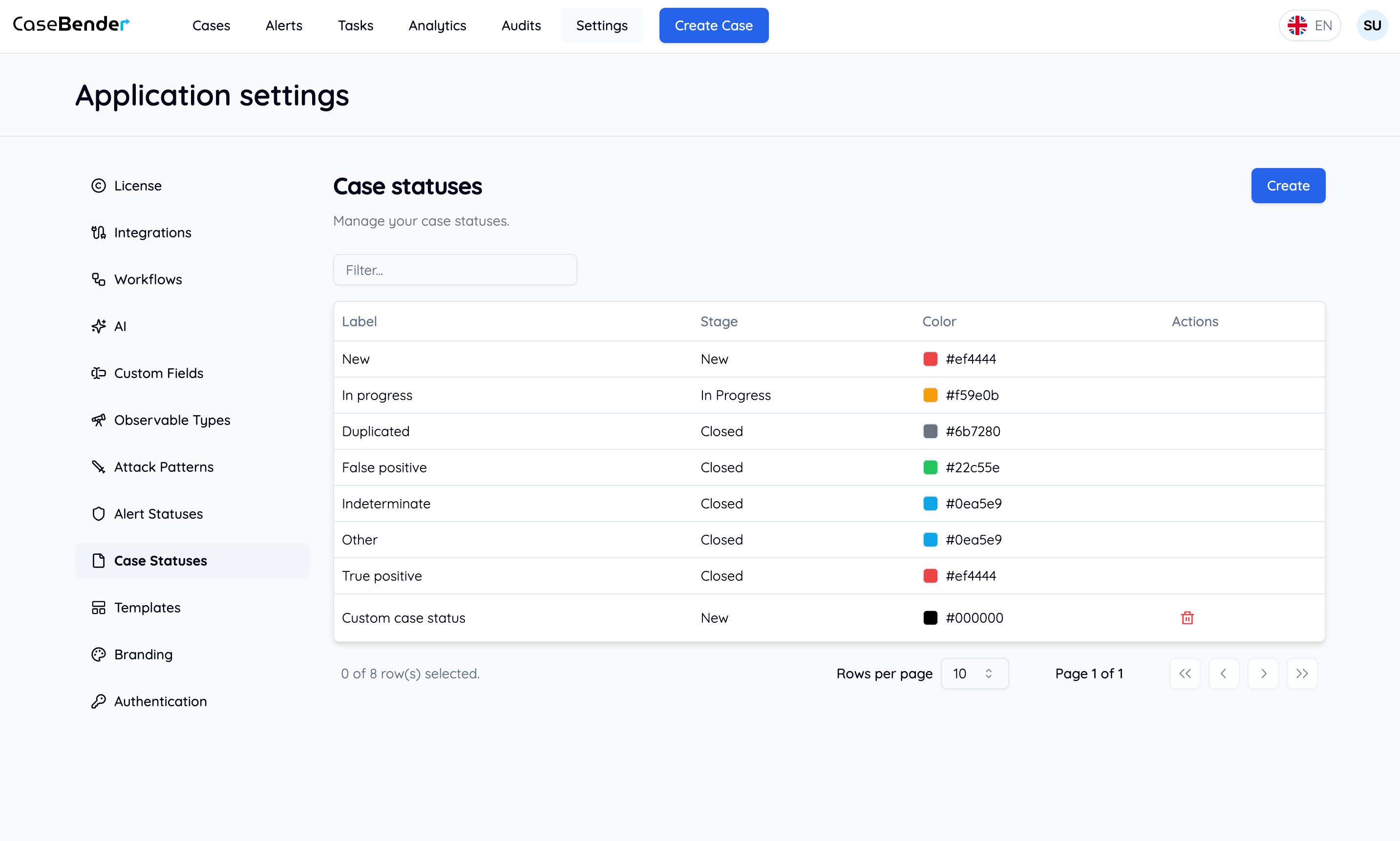
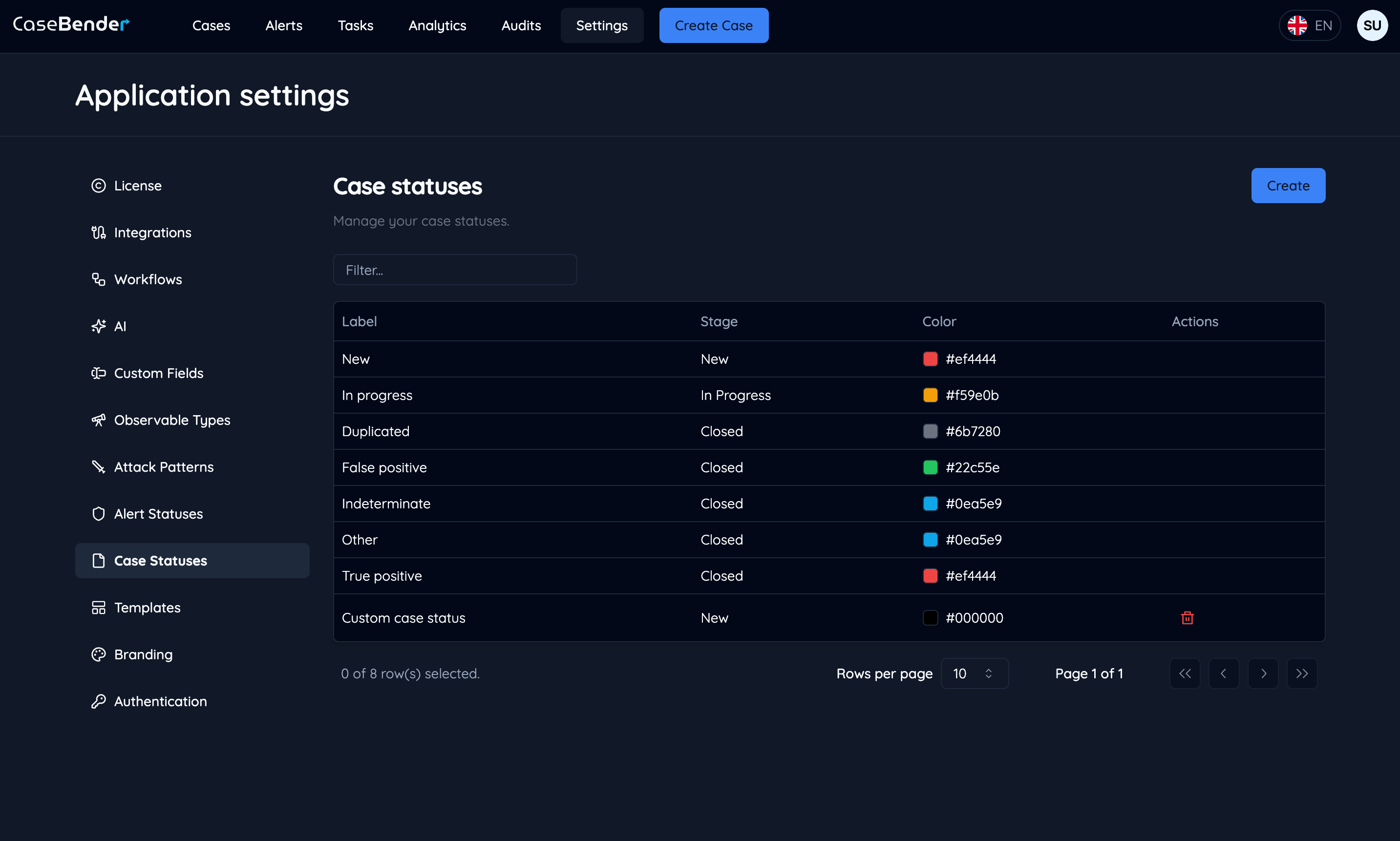 The status list displays:
* Status name and icon
* Description
* Phase/Category
* Creation date
* Last modified
* Actions
## Default Status Types
### Initial Phase
* New
* Opened
* Assigned
* Triaged
### Investigation Phase
* Under Investigation
* Evidence Collection
* Analysis in Progress
* Pending Information
### Action Phase
* Containment
* Eradication
* Recovery
* Remediation
### Closure Phase
* Resolved
* Closed
* Archived
* Reopened
## Status Configuration
### Visual Elements
* Status colors
* Icon selection
* Phase indicators
* Priority badges
### Workflow Rules
* Status transitions
* Required actions
* Time limits
* Dependencies
### Field Requirements
* Mandatory fields
* Optional information
* Documentation needs
* Approval requirements
## Best Practices
### Status Design
* Clear naming conventions
* Logical progression
* Consistent terminology
* Intuitive organization
### Process Integration
* Align with procedures
* Define clear transitions
* Set completion criteria
* Enable tracking
### Team Collaboration
* Role assignments
* Handoff procedures
* Communication rules
* Responsibility matrix
### Quality Control
* Regular reviews
* Status audits
* Process validation
* Effectiveness metrics
## Using Case Statuses
### In Case Management
* Track investigation progress
* Monitor response actions
* Manage resources
* Ensure compliance
### In Workflow Automation
* Status-based triggers
* Automatic assignments
* Notification rules
* SLA tracking
### In Reporting
* Case metrics
* Resolution times
* Team performance
* Trend analysis
## Related Documentation
* [Case Management](../../cases/introduction.mdx)
The status list displays:
* Status name and icon
* Description
* Phase/Category
* Creation date
* Last modified
* Actions
## Default Status Types
### Initial Phase
* New
* Opened
* Assigned
* Triaged
### Investigation Phase
* Under Investigation
* Evidence Collection
* Analysis in Progress
* Pending Information
### Action Phase
* Containment
* Eradication
* Recovery
* Remediation
### Closure Phase
* Resolved
* Closed
* Archived
* Reopened
## Status Configuration
### Visual Elements
* Status colors
* Icon selection
* Phase indicators
* Priority badges
### Workflow Rules
* Status transitions
* Required actions
* Time limits
* Dependencies
### Field Requirements
* Mandatory fields
* Optional information
* Documentation needs
* Approval requirements
## Best Practices
### Status Design
* Clear naming conventions
* Logical progression
* Consistent terminology
* Intuitive organization
### Process Integration
* Align with procedures
* Define clear transitions
* Set completion criteria
* Enable tracking
### Team Collaboration
* Role assignments
* Handoff procedures
* Communication rules
* Responsibility matrix
### Quality Control
* Regular reviews
* Status audits
* Process validation
* Effectiveness metrics
## Using Case Statuses
### In Case Management
* Track investigation progress
* Monitor response actions
* Manage resources
* Ensure compliance
### In Workflow Automation
* Status-based triggers
* Automatic assignments
* Notification rules
* SLA tracking
### In Reporting
* Case metrics
* Resolution times
* Team performance
* Trend analysis
## Related Documentation
* [Case Management](../../cases/introduction.mdx)