> ## Documentation Index
> Fetch the complete documentation index at: https://docs.casebender.com/llms.txt
> Use this file to discover all available pages before exploring further.
# Workflows
> Create and manage automated workflows to streamline your case management processes in CaseBender.
## Overview
The Workflow Settings section allows you to create automated workflows that execute actions based on specific triggers in your CaseBender instance. This guide will walk you through the process of setting up and configuring workflows.
 ## Creating a New Workflow
### Step 1: Basic Configuration
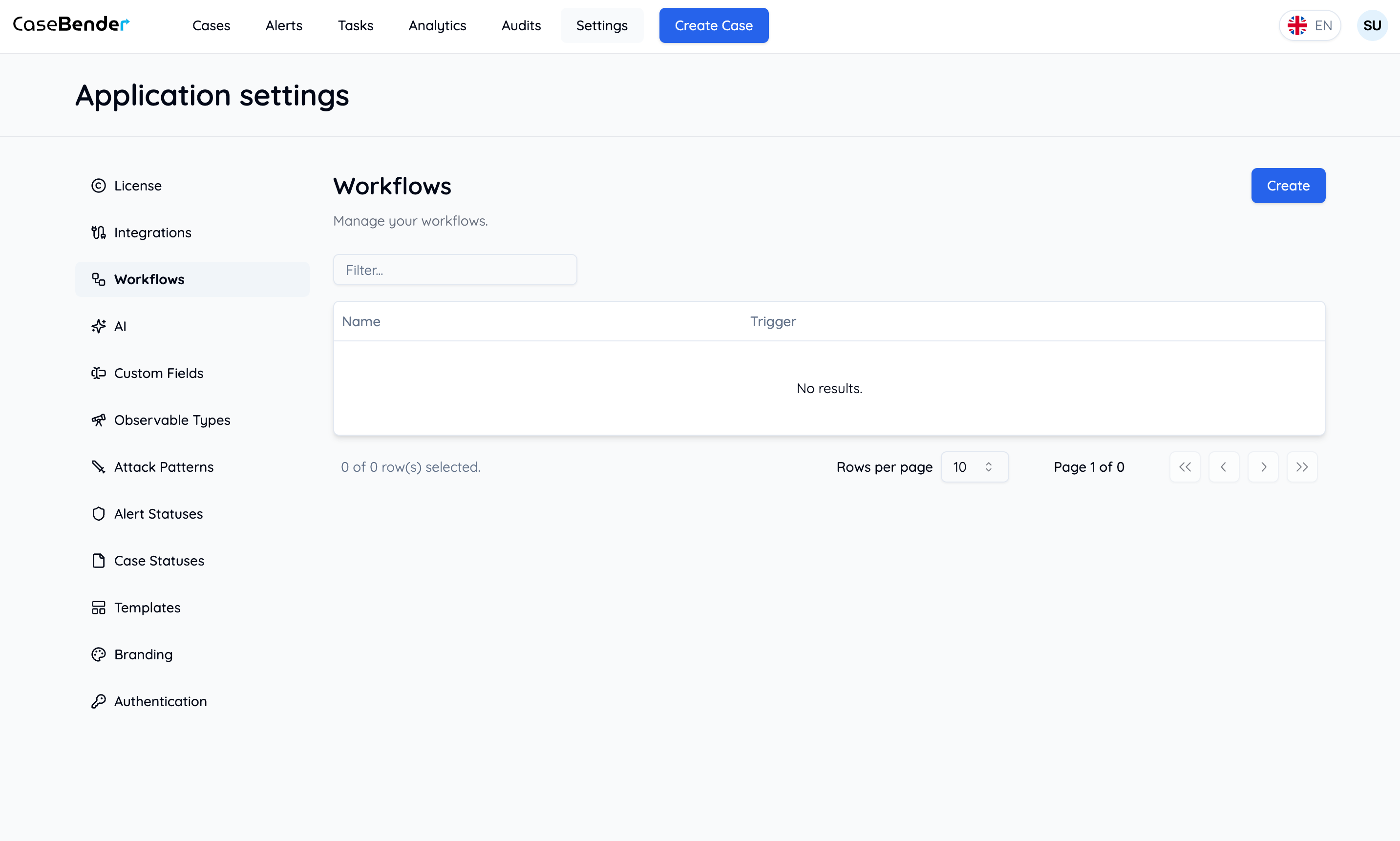
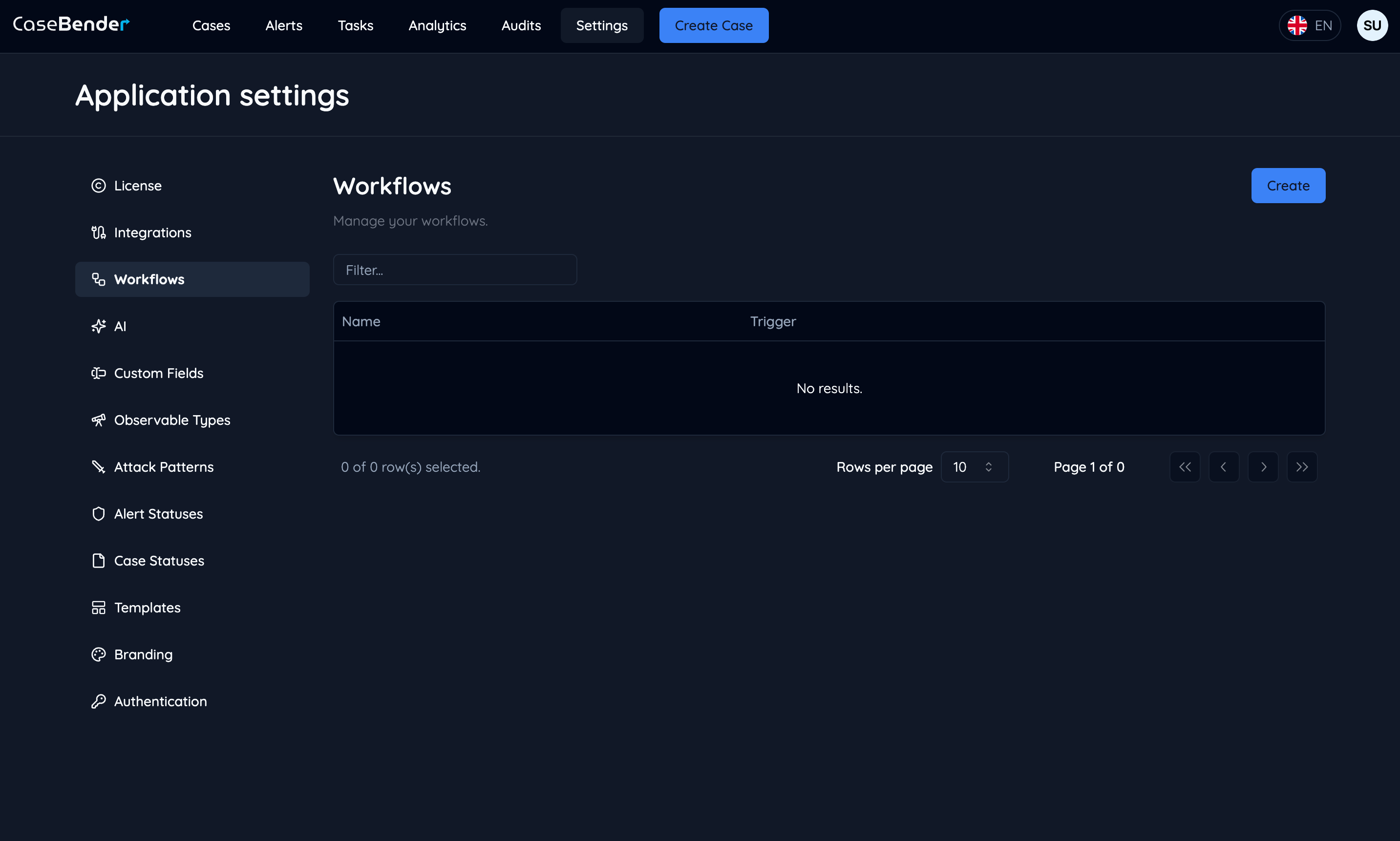
Start by clicking the "Create" button and filling out the basic workflow information:
## Creating a New Workflow
### Step 1: Basic Configuration
Start by clicking the "Create" button and filling out the basic workflow information:
 ### Step 2: Workflow Details
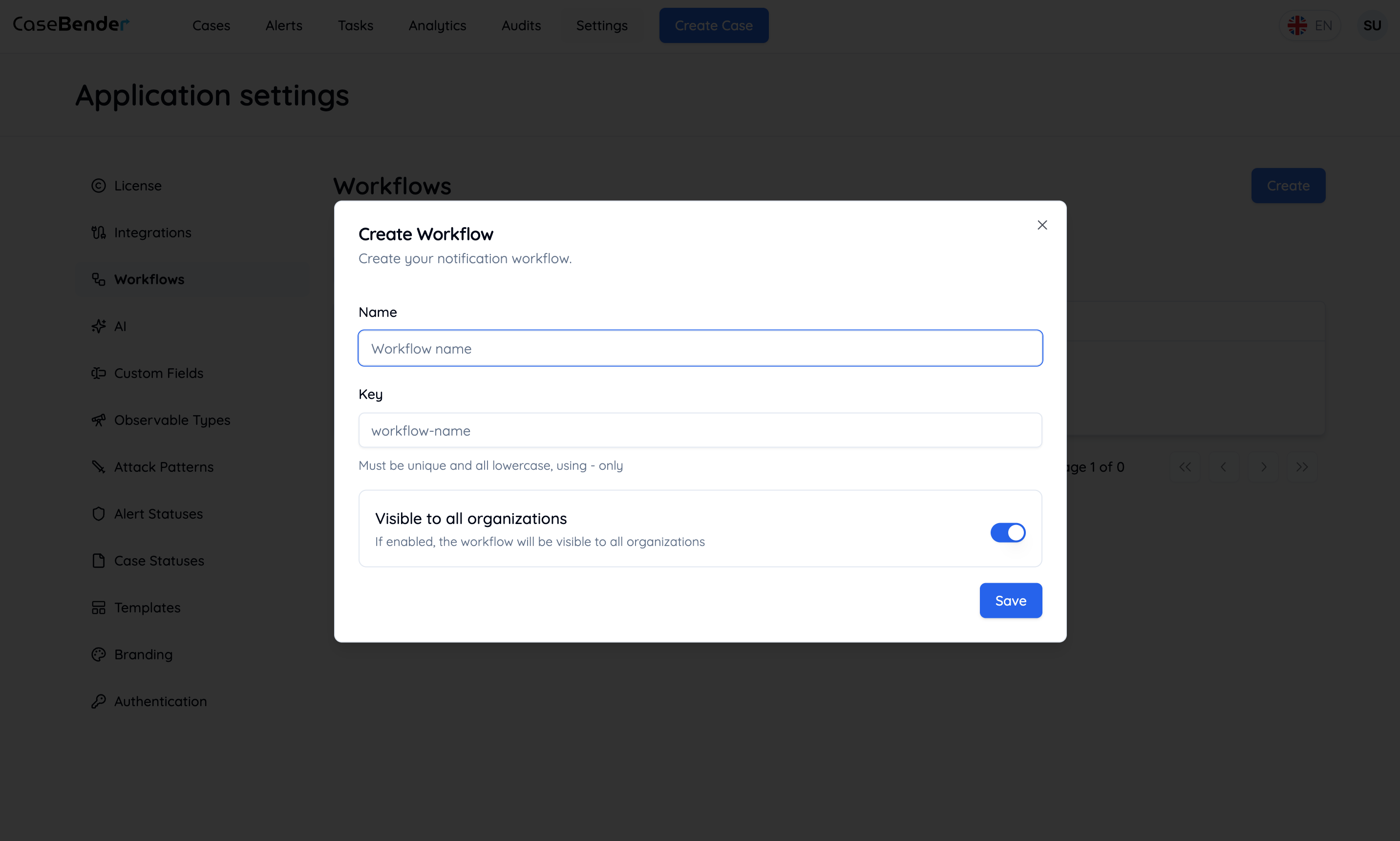
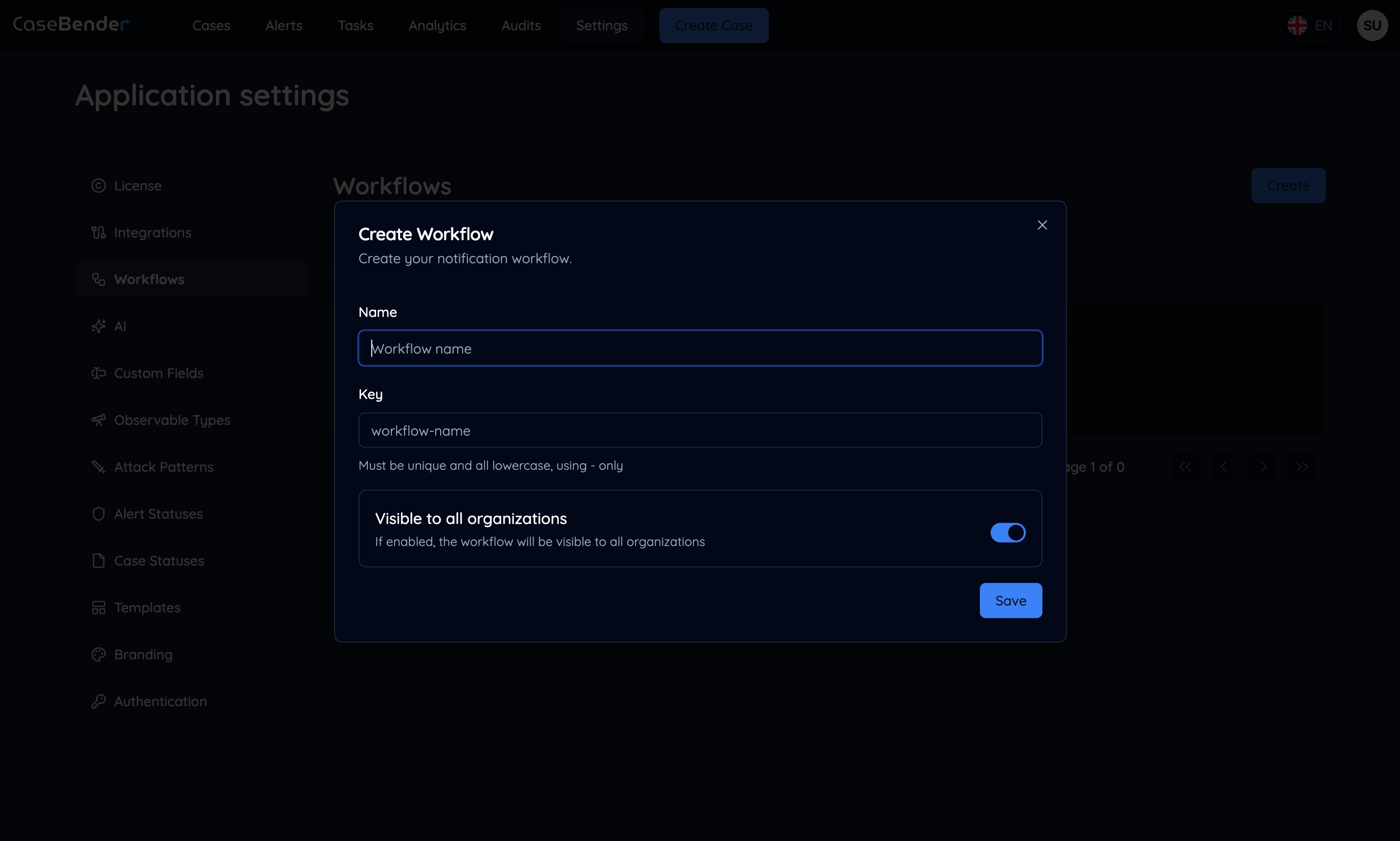
Configure the detailed settings for your workflow:
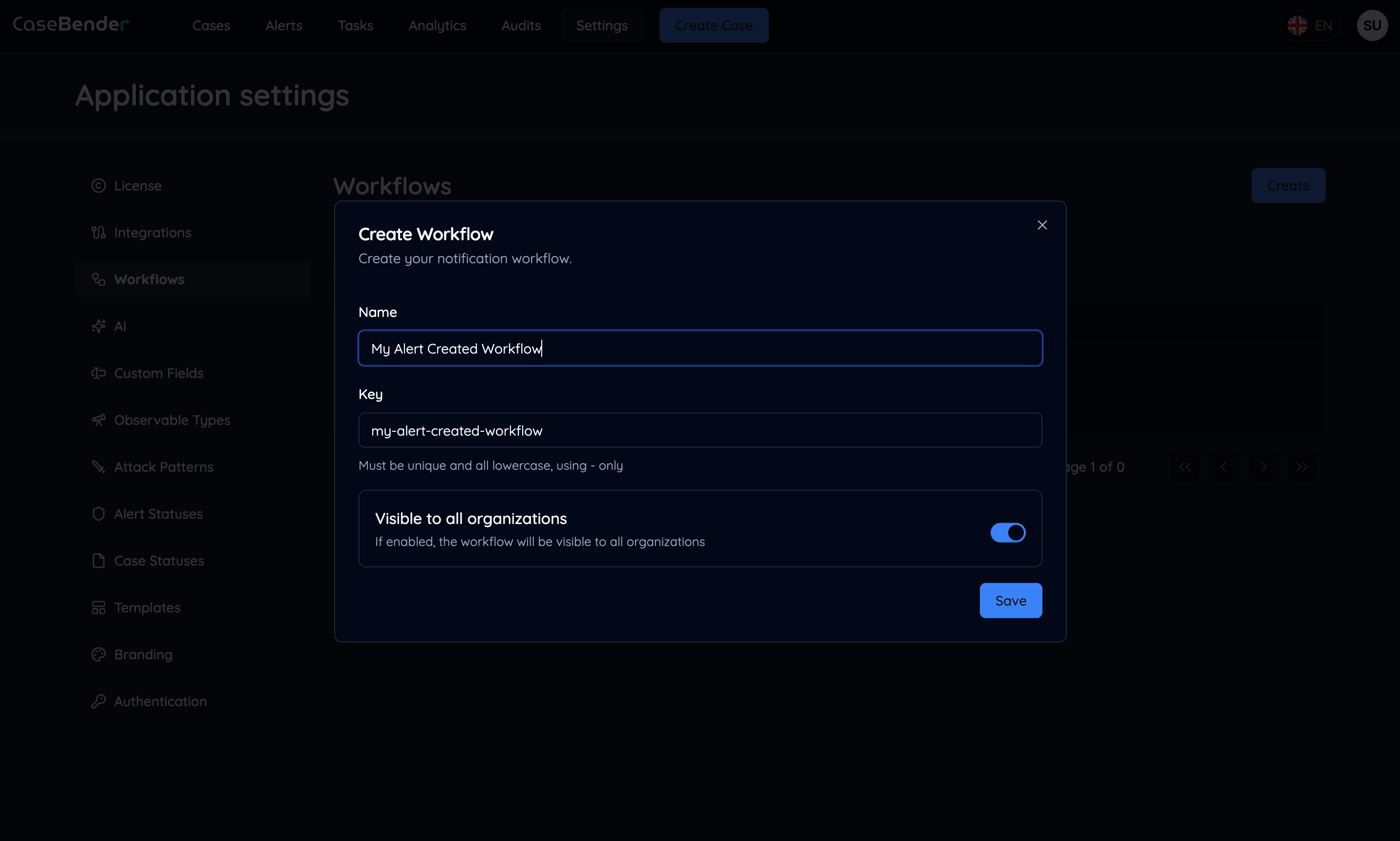
### Step 2: Workflow Details
Configure the detailed settings for your workflow:
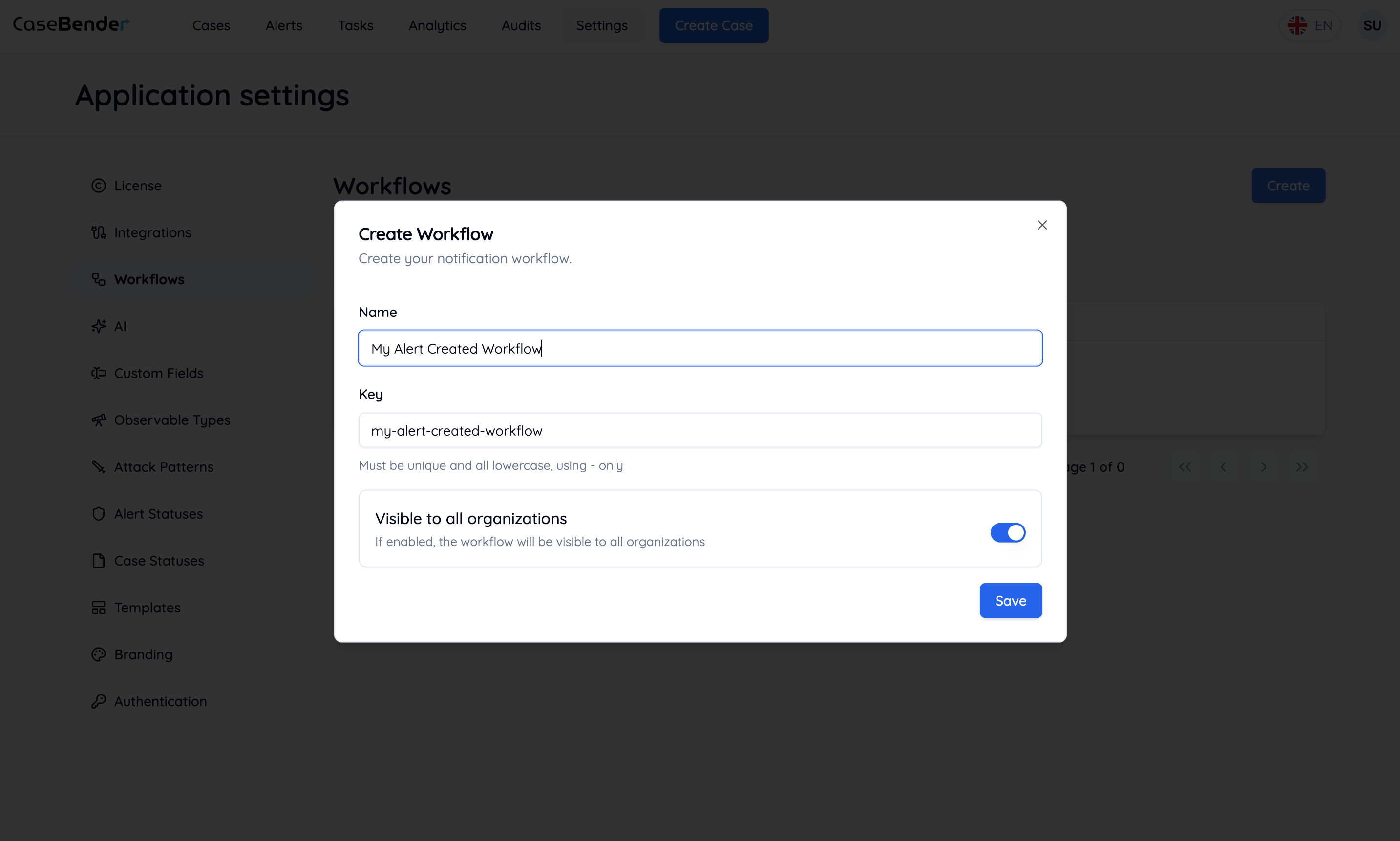
 Fill out the required information such as:
* Workflow name
* Description
* Priority level
* Execution settings
### Step 3: Organization Settings
Specify which organizations can access and use this workflow:
Fill out the required information such as:
* Workflow name
* Description
* Priority level
* Execution settings
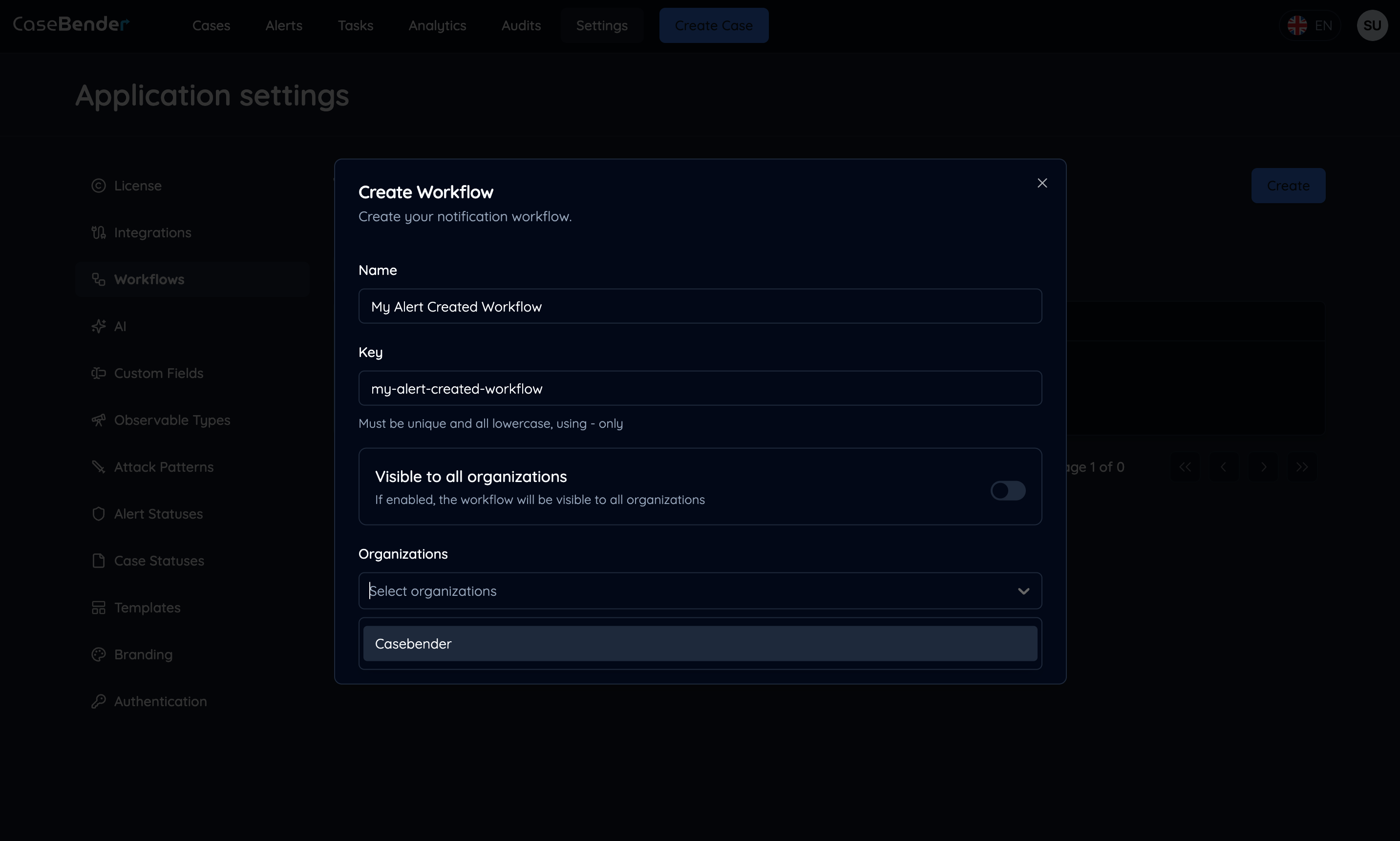
### Step 3: Organization Settings
Specify which organizations can access and use this workflow:
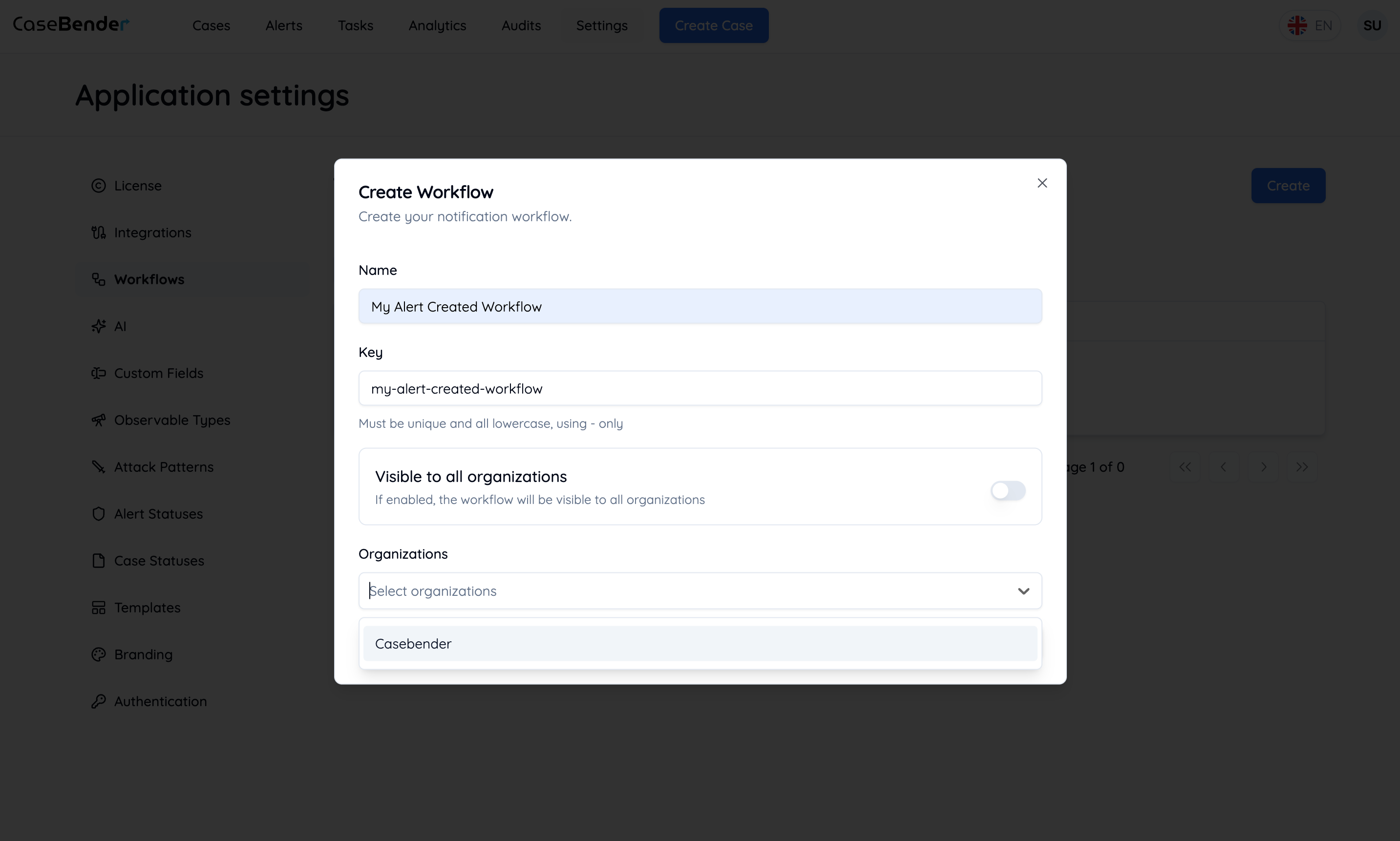
 * Select applicable organizations
* Configure organization-specific settings
* Set access permissions
## Configuring Workflow Logic
### Step 1: Select Trigger
Choose the event that will initiate your workflow:
* Select applicable organizations
* Configure organization-specific settings
* Set access permissions
## Configuring Workflow Logic
### Step 1: Select Trigger
Choose the event that will initiate your workflow:
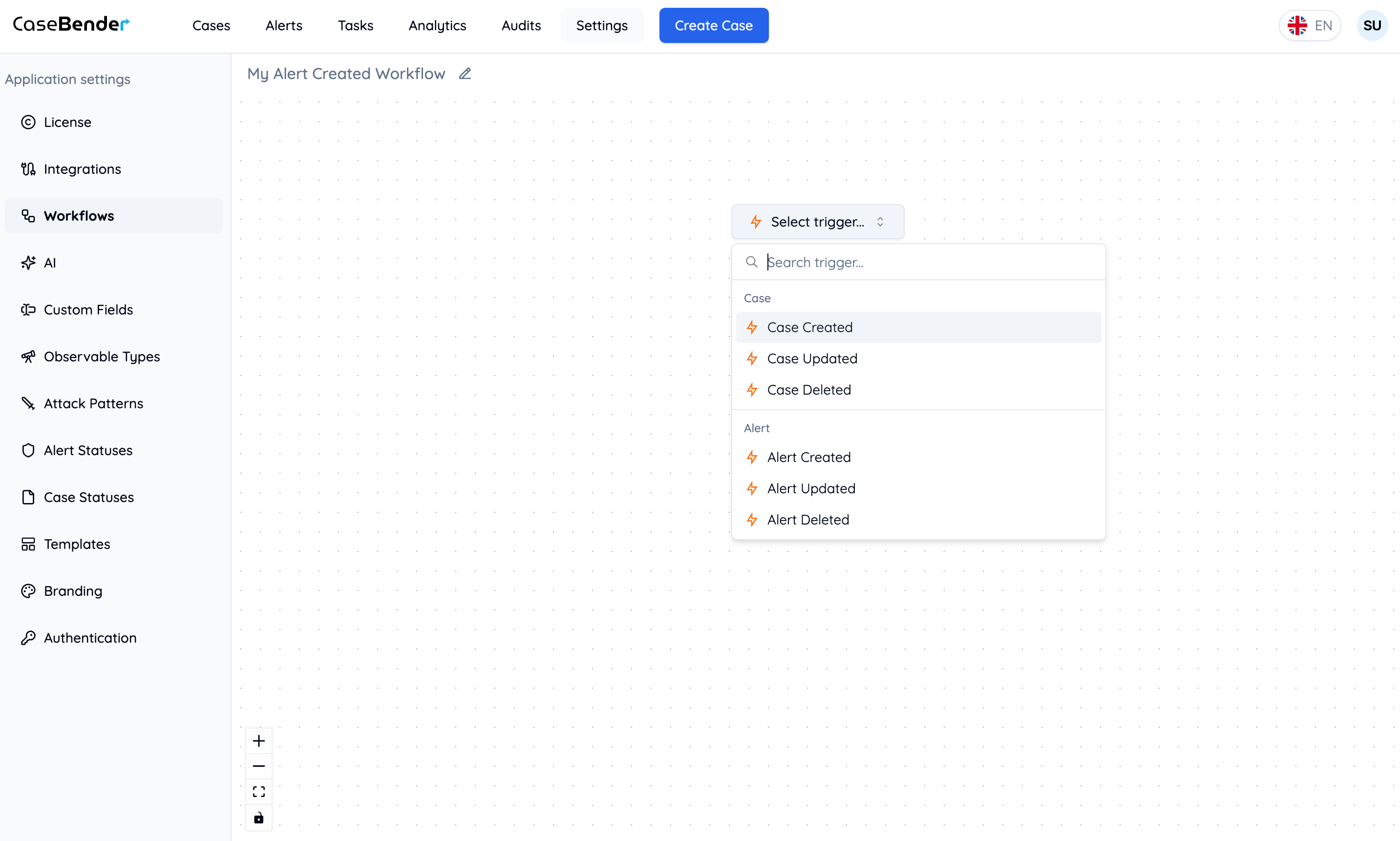
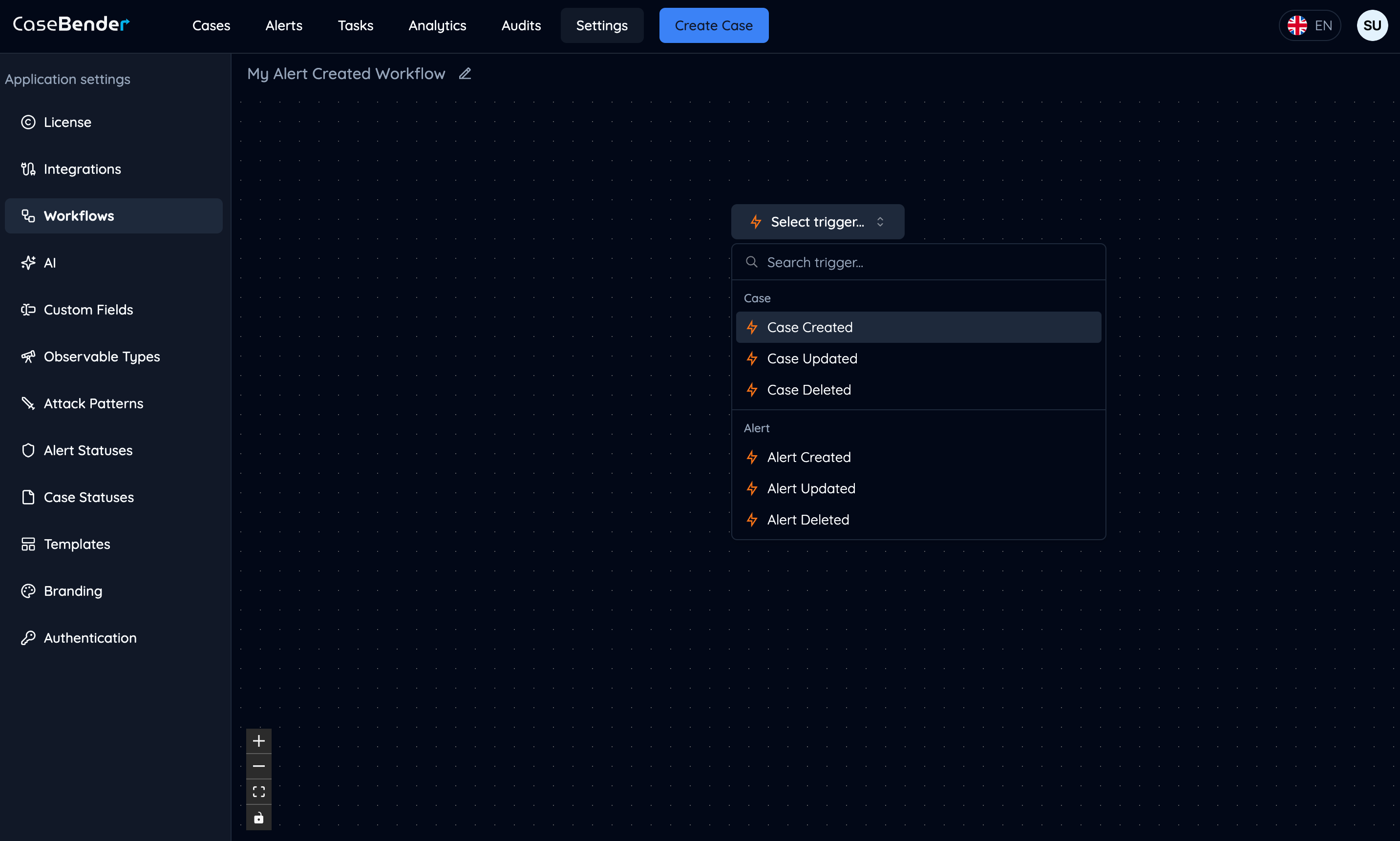 Available triggers may include:
* Case creation or updates
* Task assignments
* Status changes
* Custom events
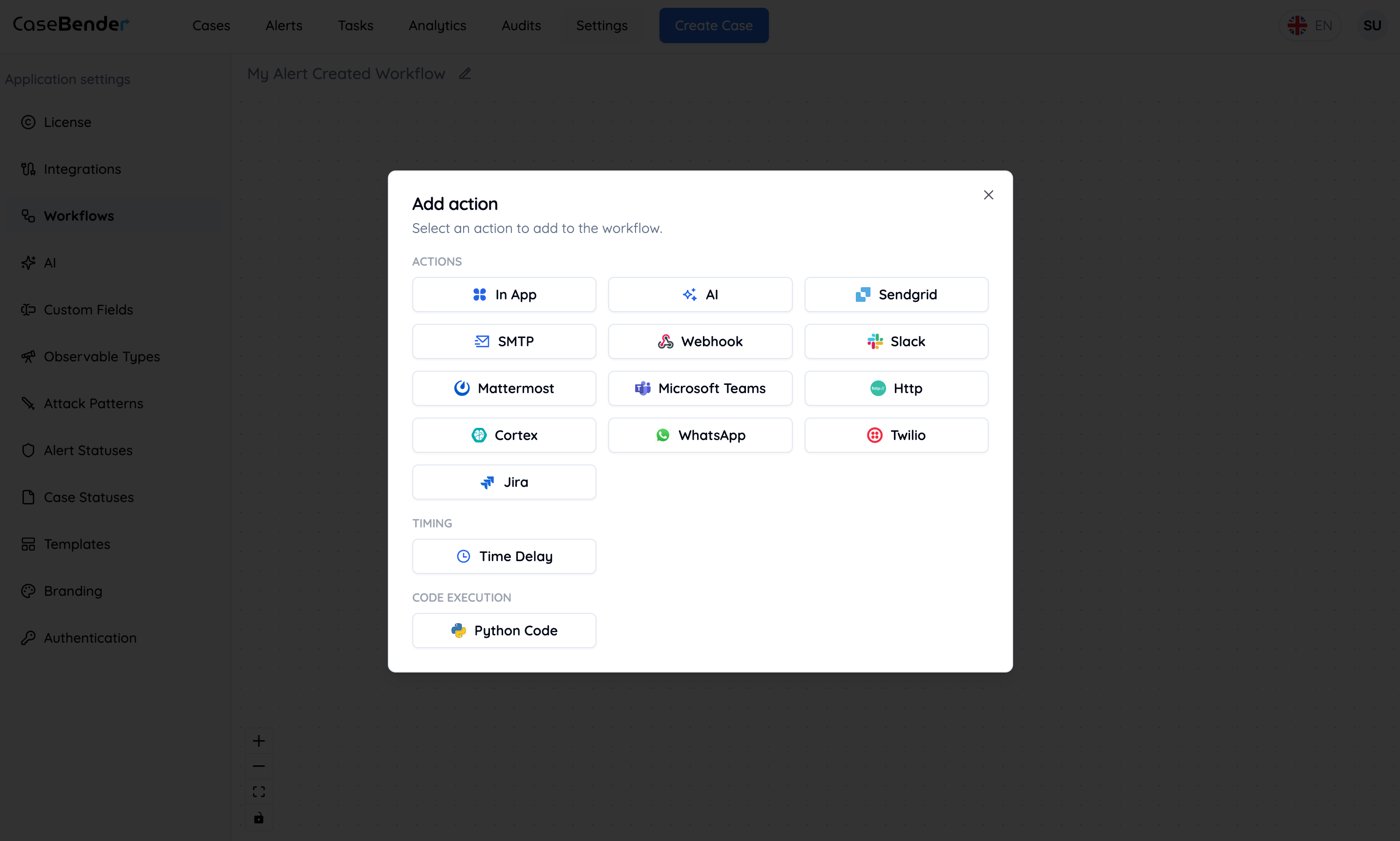
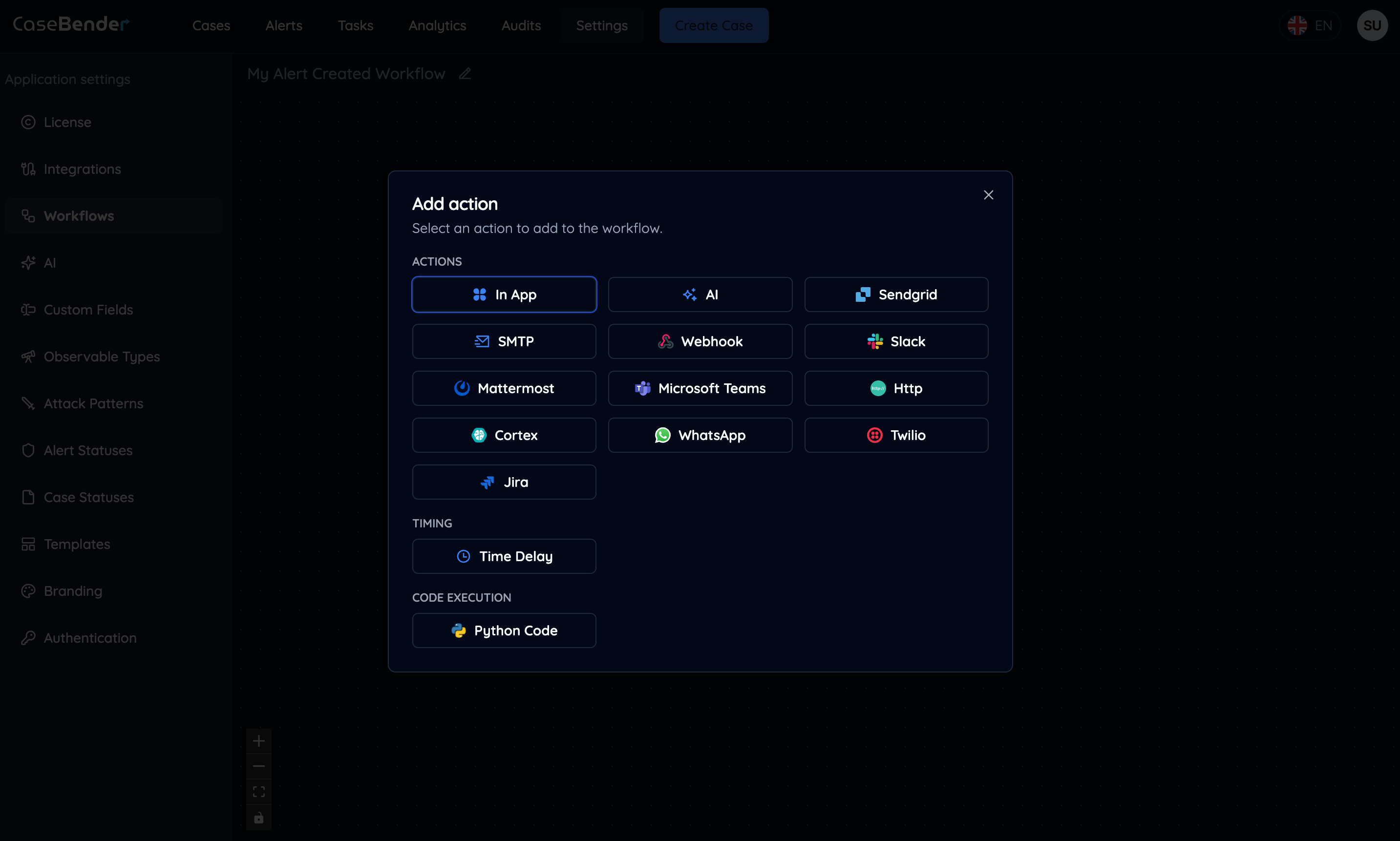
### Step 2: Add Actions
Click the plus button on flow edges to add actions to your workflow:
Available triggers may include:
* Case creation or updates
* Task assignments
* Status changes
* Custom events
### Step 2: Add Actions
Click the plus button on flow edges to add actions to your workflow:
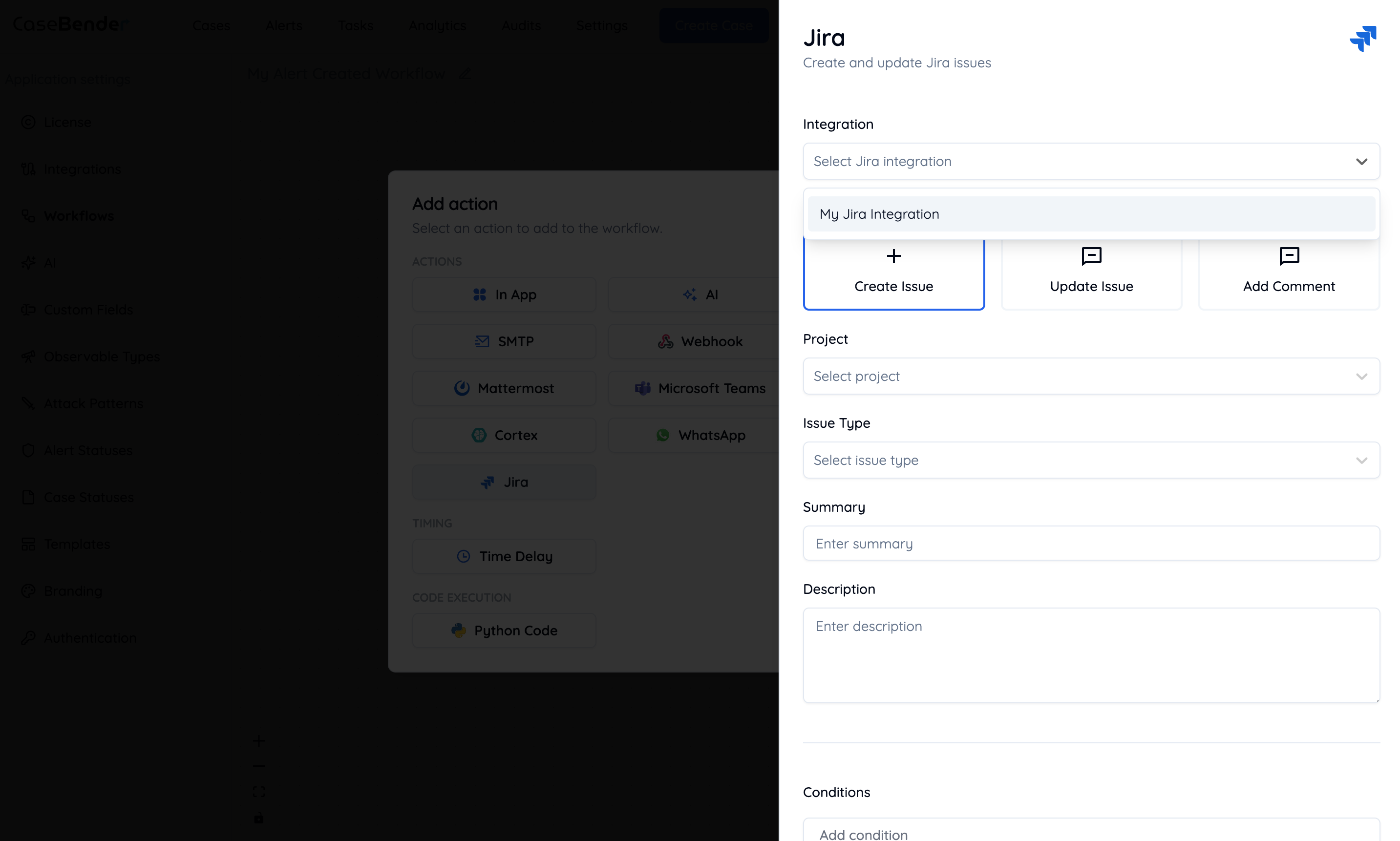
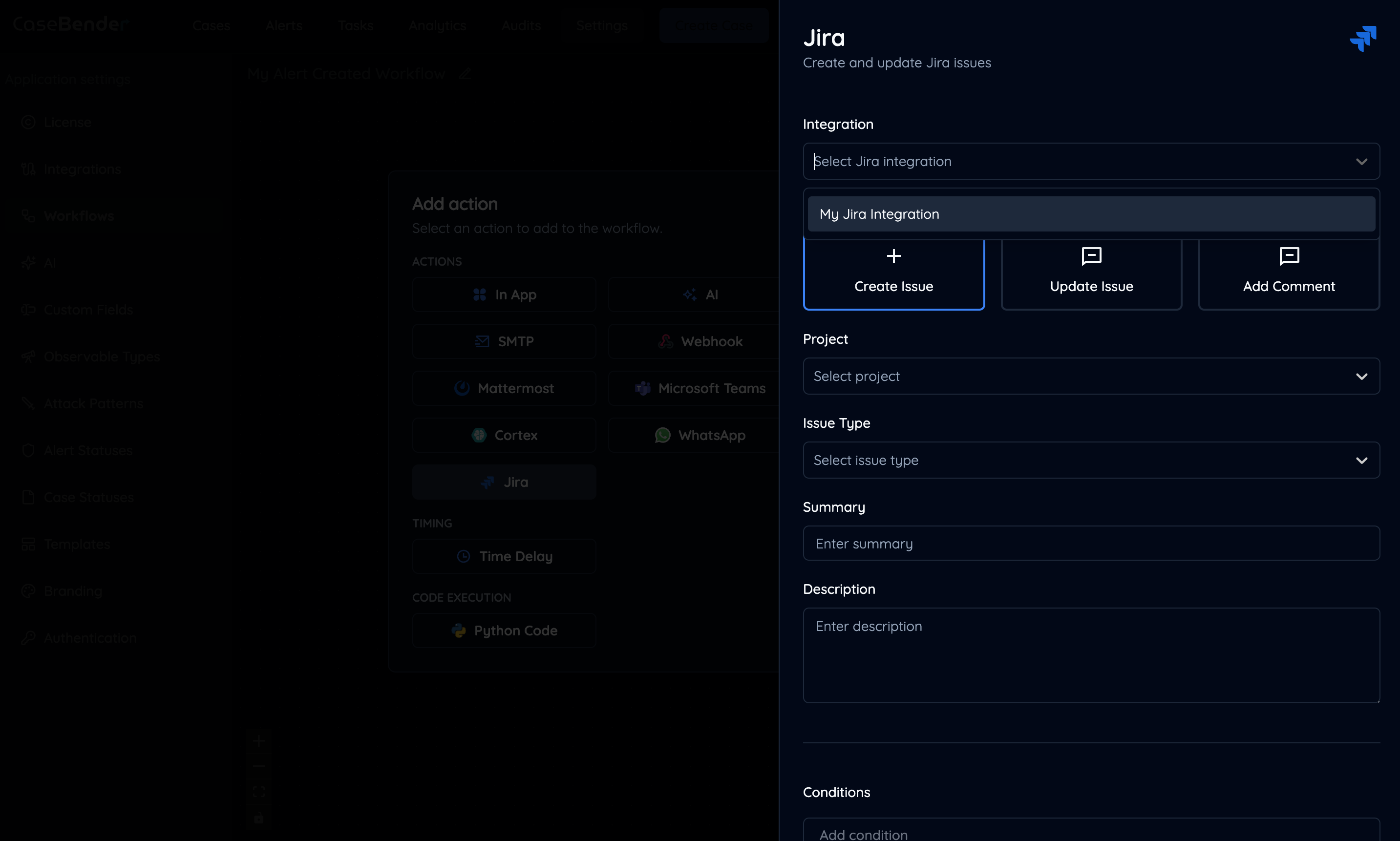
 ### Step 3: Configure Action
Select and configure each action in your workflow:
### Step 3: Configure Action
Select and configure each action in your workflow:
 ### Step 4: Action Details
Provide detailed configuration for each action:
### Step 4: Action Details
Provide detailed configuration for each action:
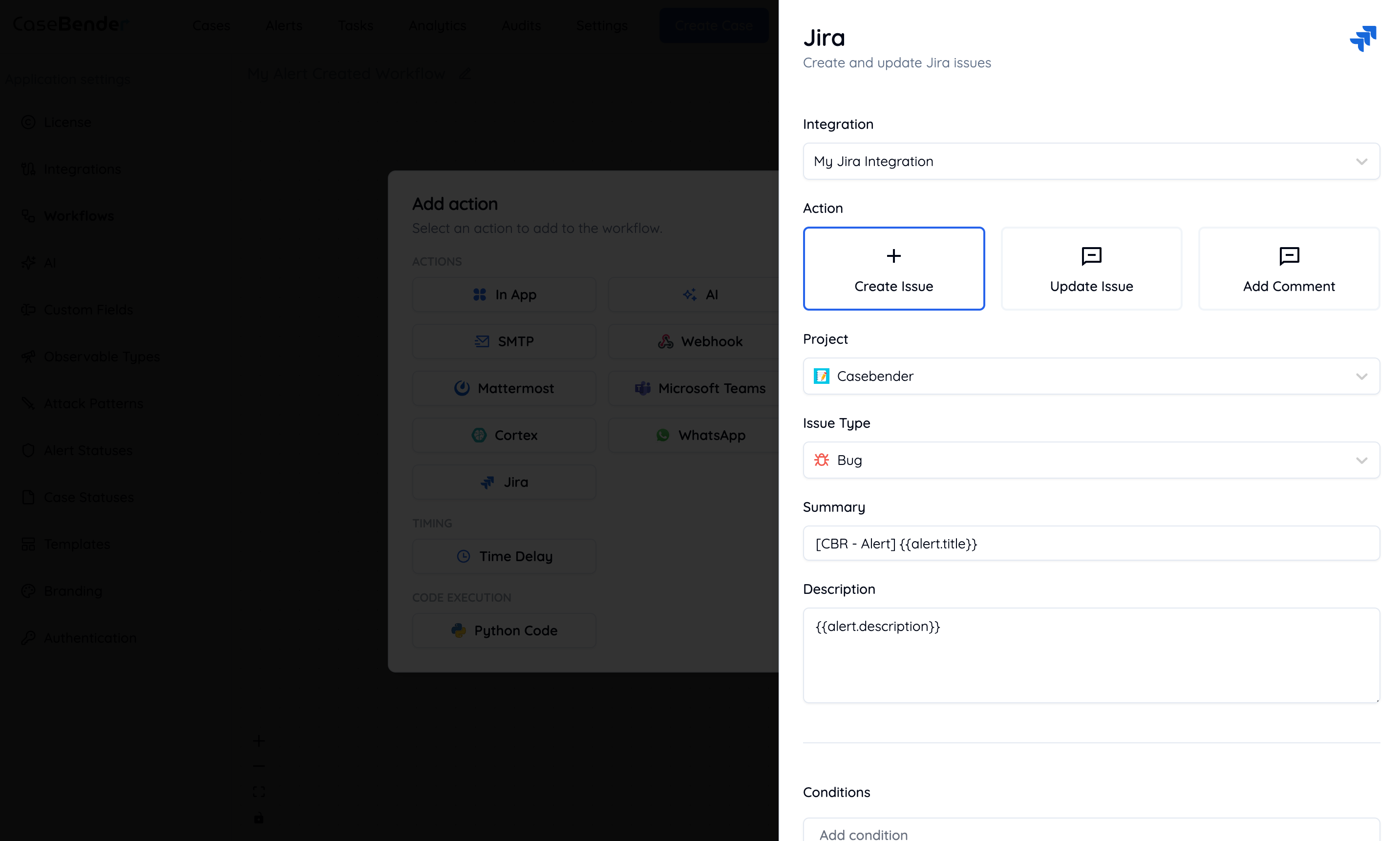
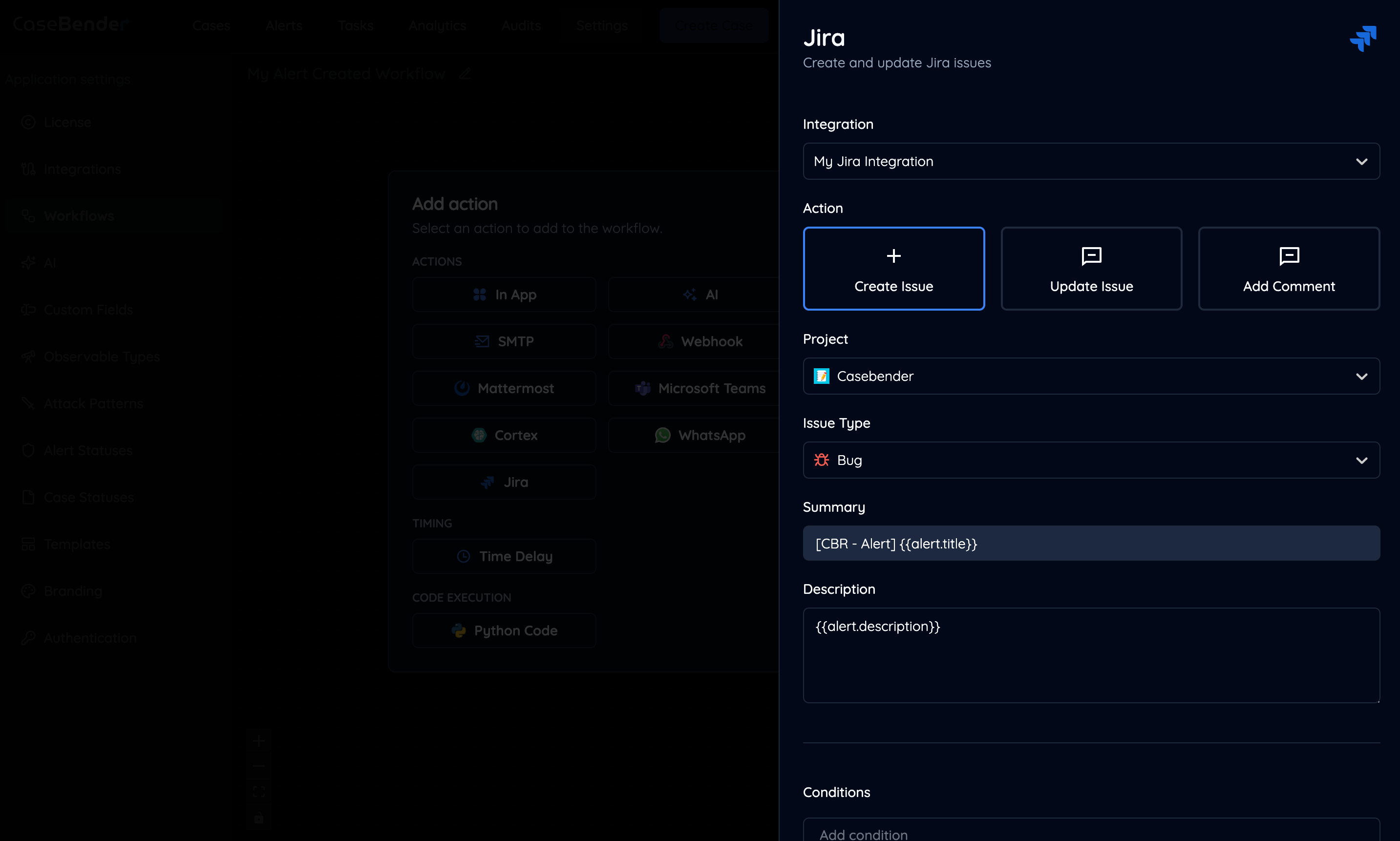 Configure settings such as:
* Action type specific parameters
* Conditional logic
* Input/output mapping
* Error handling
## Update Trigger Safety
Workflows triggered by case or alert updates include safeguards that prevent an
action from repeatedly triggering the same workflow:
* Updates that only change the internal `updatedAt` timestamp do not emit a new
workflow event.
* Assignment, status, severity, title, description, PAP, and case type actions
skip writes when the requested value is already present.
* A duplicate source event is processed only once.
* An update event is suppressed while the same workflow is already executing
for that case or alert.
* A per-entity circuit breaker suppresses excessive repeated executions.
Suppressed runs are retained in workflow execution history with a `suppressed`
status and loop-guard details. This provides an audit trail without executing
the workflow actions again.
### Circuit Breaker Configuration
The workflow processor uses safe defaults that can be adjusted with environment
variables:
* `WORKFLOW_LOOP_MAX_EXECUTIONS` — maximum executions for one workflow and
entity within the configured window. Default: `10`.
* `WORKFLOW_LOOP_WINDOW_MS` — circuit-breaker window in milliseconds. Default:
`60000`.
* `WORKFLOW_LOOP_ACTIVE_WINDOW_MS` — how long an unfinished execution is
considered active for recursive-event suppression. Default: `900000`.
Increasing these limits can allow a misconfigured update workflow to perform
repeated side effects. Test changes in a non-production environment and
monitor execution history after activation.
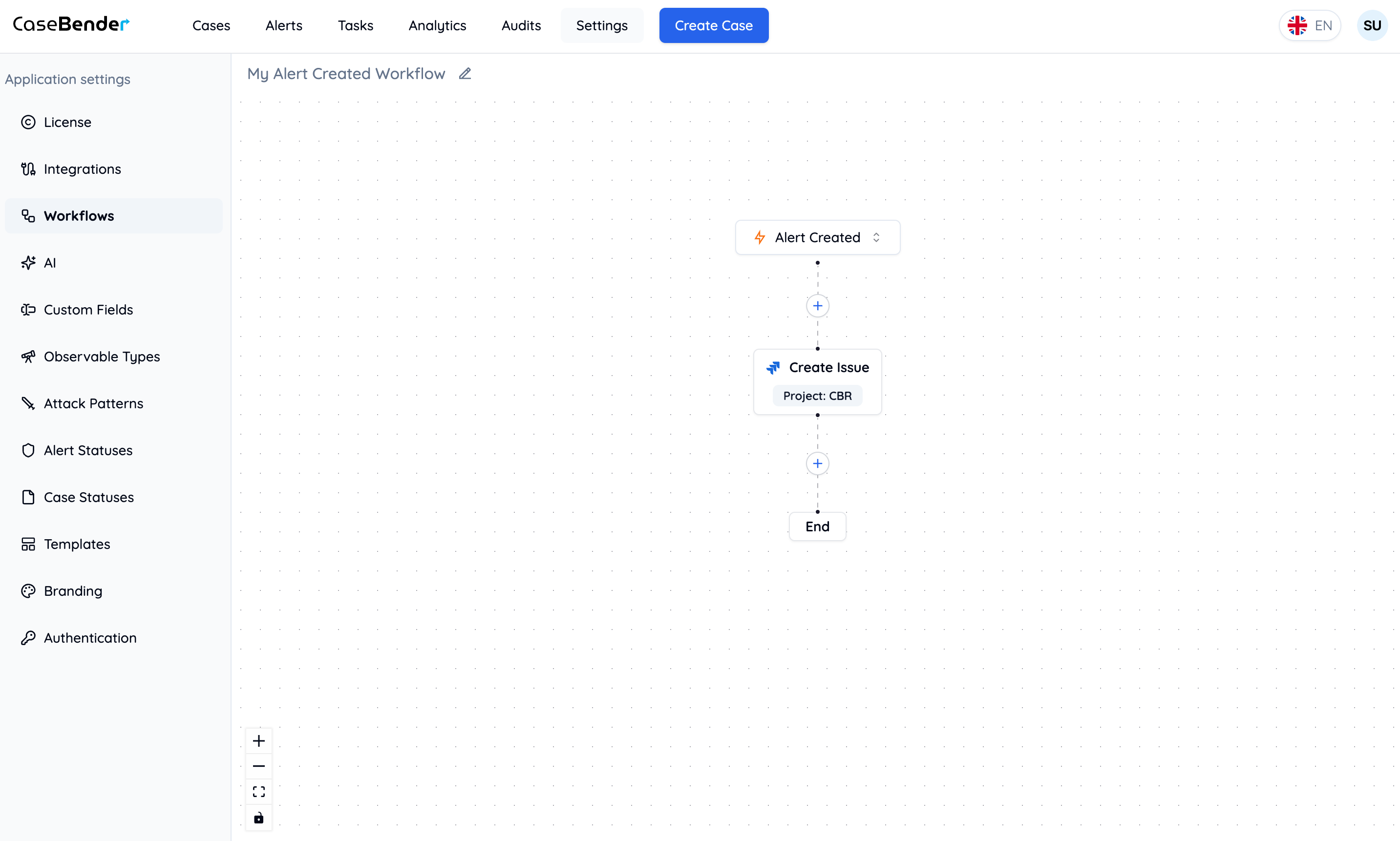
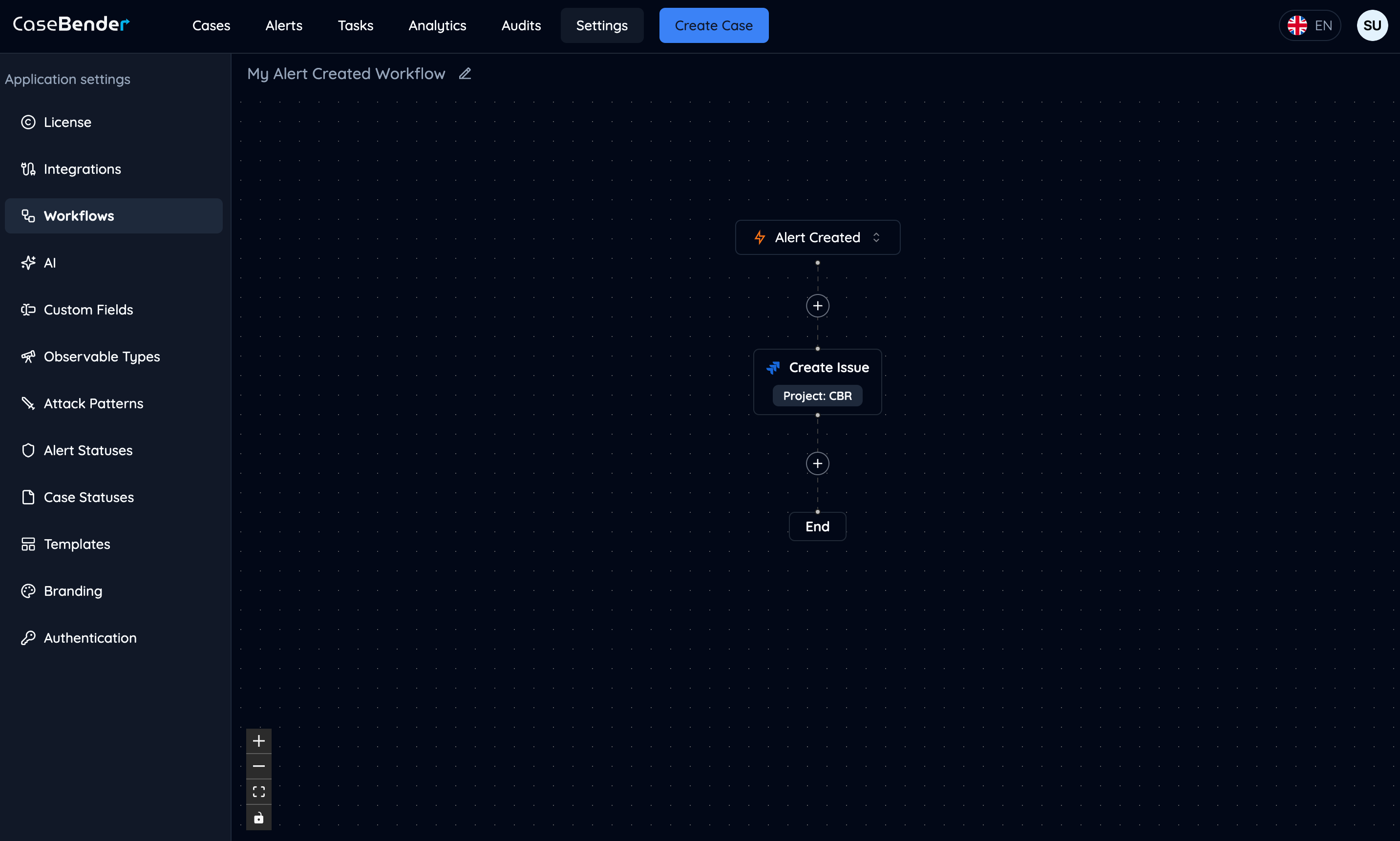
### Step 5: Review Workflow
Review your complete workflow with all configured actions:
Configure settings such as:
* Action type specific parameters
* Conditional logic
* Input/output mapping
* Error handling
## Update Trigger Safety
Workflows triggered by case or alert updates include safeguards that prevent an
action from repeatedly triggering the same workflow:
* Updates that only change the internal `updatedAt` timestamp do not emit a new
workflow event.
* Assignment, status, severity, title, description, PAP, and case type actions
skip writes when the requested value is already present.
* A duplicate source event is processed only once.
* An update event is suppressed while the same workflow is already executing
for that case or alert.
* A per-entity circuit breaker suppresses excessive repeated executions.
Suppressed runs are retained in workflow execution history with a `suppressed`
status and loop-guard details. This provides an audit trail without executing
the workflow actions again.
### Circuit Breaker Configuration
The workflow processor uses safe defaults that can be adjusted with environment
variables:
* `WORKFLOW_LOOP_MAX_EXECUTIONS` — maximum executions for one workflow and
entity within the configured window. Default: `10`.
* `WORKFLOW_LOOP_WINDOW_MS` — circuit-breaker window in milliseconds. Default:
`60000`.
* `WORKFLOW_LOOP_ACTIVE_WINDOW_MS` — how long an unfinished execution is
considered active for recursive-event suppression. Default: `900000`.
Increasing these limits can allow a misconfigured update workflow to perform
repeated side effects. Test changes in a non-production environment and
monitor execution history after activation.
### Step 5: Review Workflow
Review your complete workflow with all configured actions:
 ## Best Practices
### Workflow Design
* Keep workflows focused and specific
* Use clear, descriptive names
* Document the purpose and expected outcomes
* Test workflows thoroughly before activation
* Avoid pairs of workflows that repeatedly reverse each other's changes
* Use conditions that describe the intended transition, not only the current state
### Performance Considerations
* Optimize action sequences
* Consider execution time and resources
* Monitor workflow performance
* Handle errors appropriately
* Investigate repeated `suppressed` executions before increasing safety limits
### Maintenance
* Regularly review and update workflows
* Monitor execution logs
* Keep documentation current
* Validate triggers and actions periodically
## Best Practices
### Workflow Design
* Keep workflows focused and specific
* Use clear, descriptive names
* Document the purpose and expected outcomes
* Test workflows thoroughly before activation
* Avoid pairs of workflows that repeatedly reverse each other's changes
* Use conditions that describe the intended transition, not only the current state
### Performance Considerations
* Optimize action sequences
* Consider execution time and resources
* Monitor workflow performance
* Handle errors appropriately
* Investigate repeated `suppressed` executions before increasing safety limits
### Maintenance
* Regularly review and update workflows
* Monitor execution logs
* Keep documentation current
* Validate triggers and actions periodically