> ## Documentation Index
> Fetch the complete documentation index at: https://docs.casebender.com/llms.txt
> Use this file to discover all available pages before exploring further.

# 統合

> CaseBenderインスタンスで外部サービスやシステムとの統合を構成および管理します。

## 概要

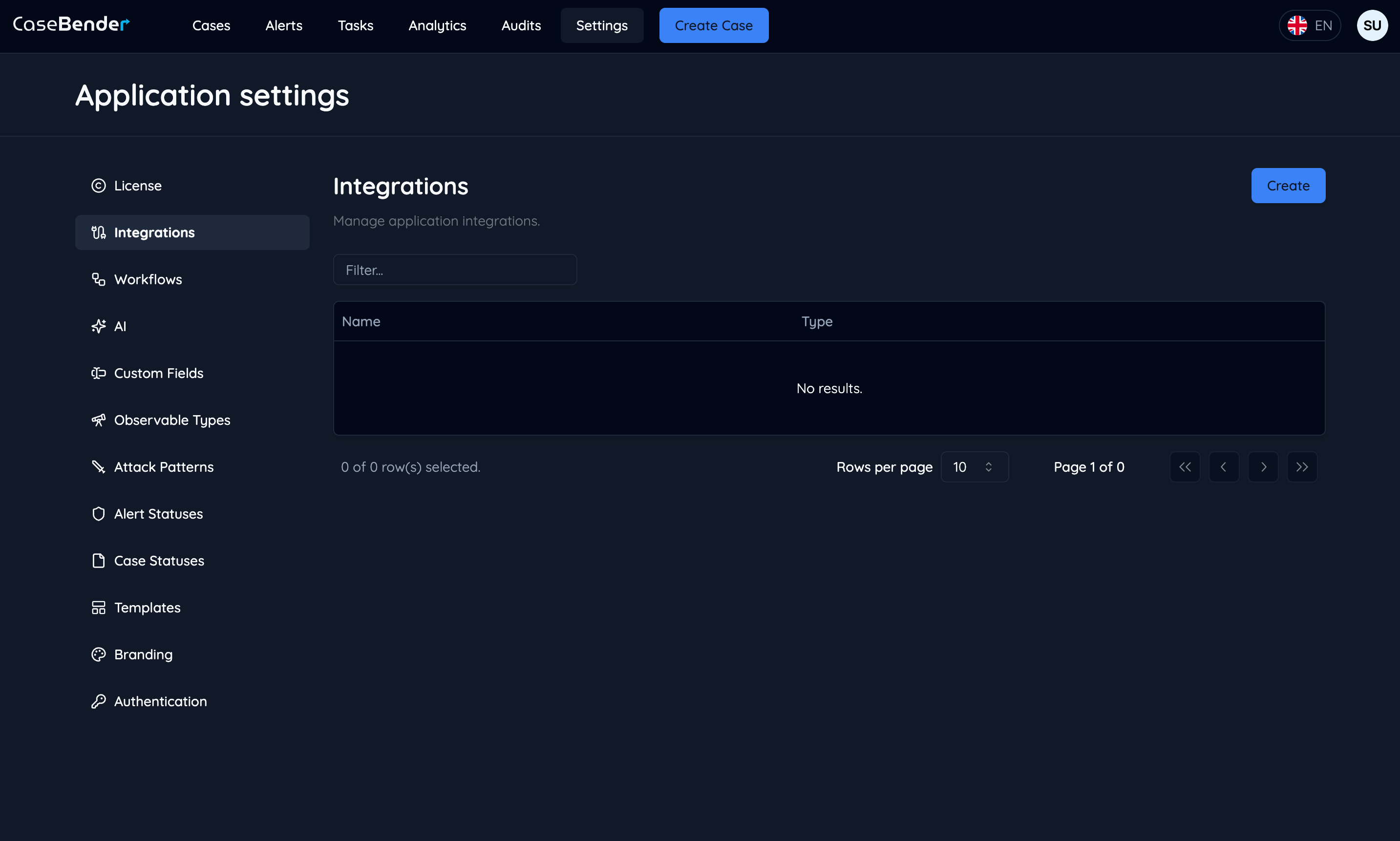
統合設定セクションでは、CaseBenderワークフローを強化するための様々な外部サービスとの統合を管理および作成することができます。このガイドでは、新しい統合をセットアップするプロセスについて説明します。
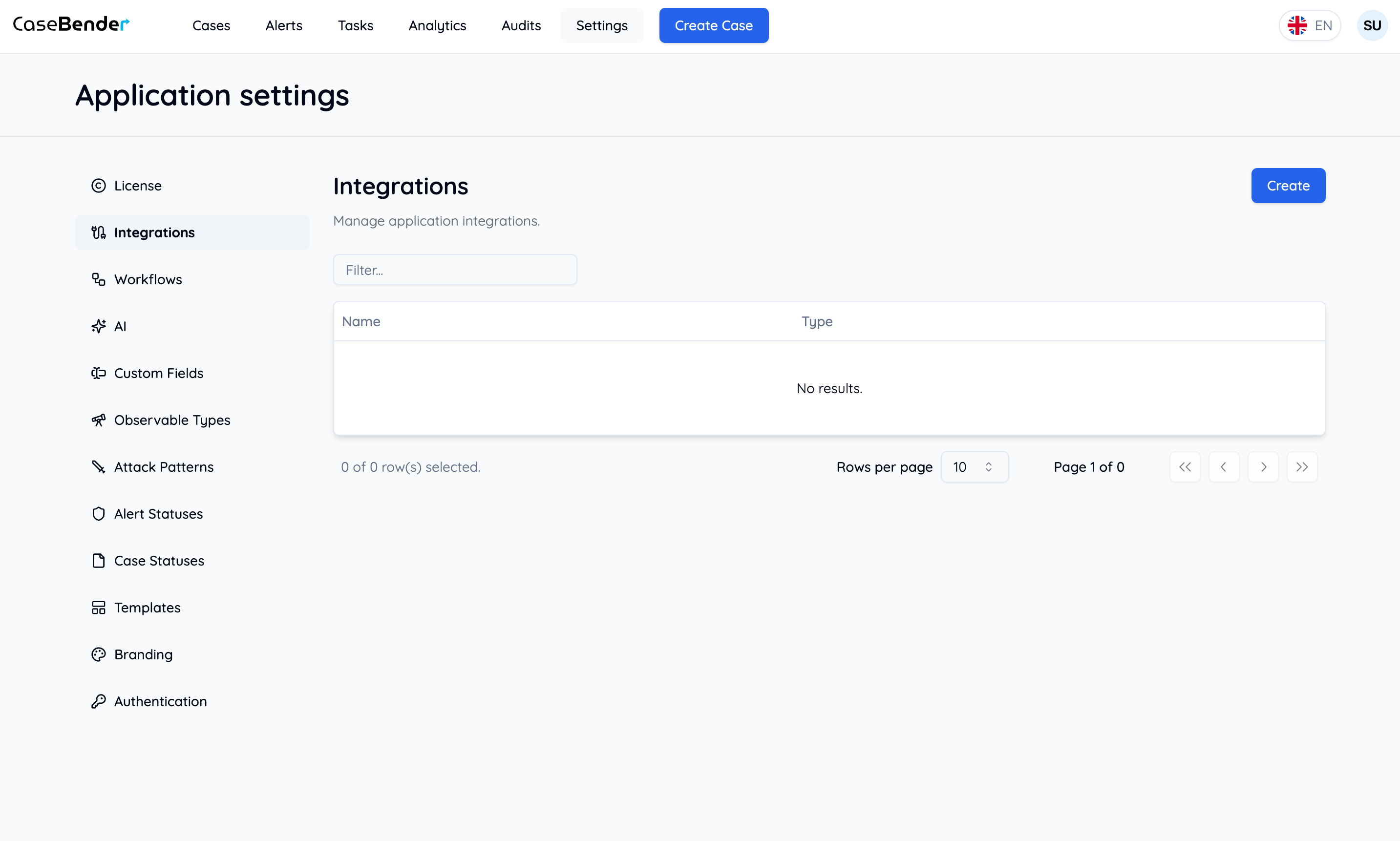
<img className="block dark:hidden h-96 object-cover w-full rounded-lg" src="https://mintcdn.com/casebender/kzW53TJunB3_tHaF/images/settings/integrations/dashboard--light.png?fit=max&auto=format&n=kzW53TJunB3_tHaF&q=85&s=2e2dff089371d33a0f9d12778abcc27e" alt="統合ダッシュボード（ライト）" width="2866" height="1722" data-path="images/settings/integrations/dashboard--light.png" />

<img className="hidden dark:block h-96 object-cover w-full rounded-lg" src="https://mintcdn.com/casebender/kzW53TJunB3_tHaF/images/settings/integrations/dashboard--dark.png?fit=max&auto=format&n=kzW53TJunB3_tHaF&q=85&s=7181265719c17c7eeb8978a503b0a764" alt="統合ダッシュボード（ダーク）" width="2866" height="1722" data-path="images/settings/integrations/dashboard--dark.png" />

## 新しい統合の作成

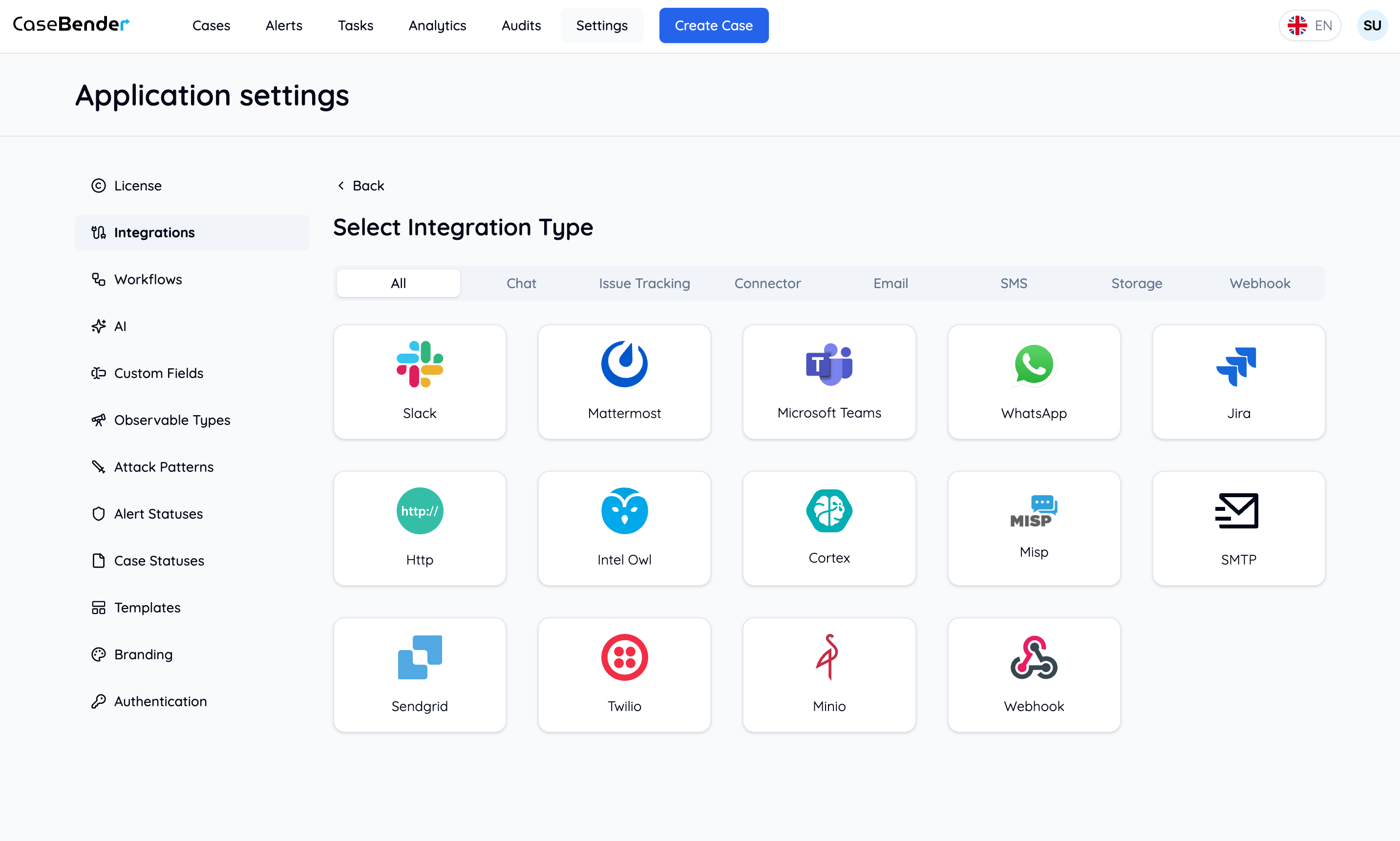
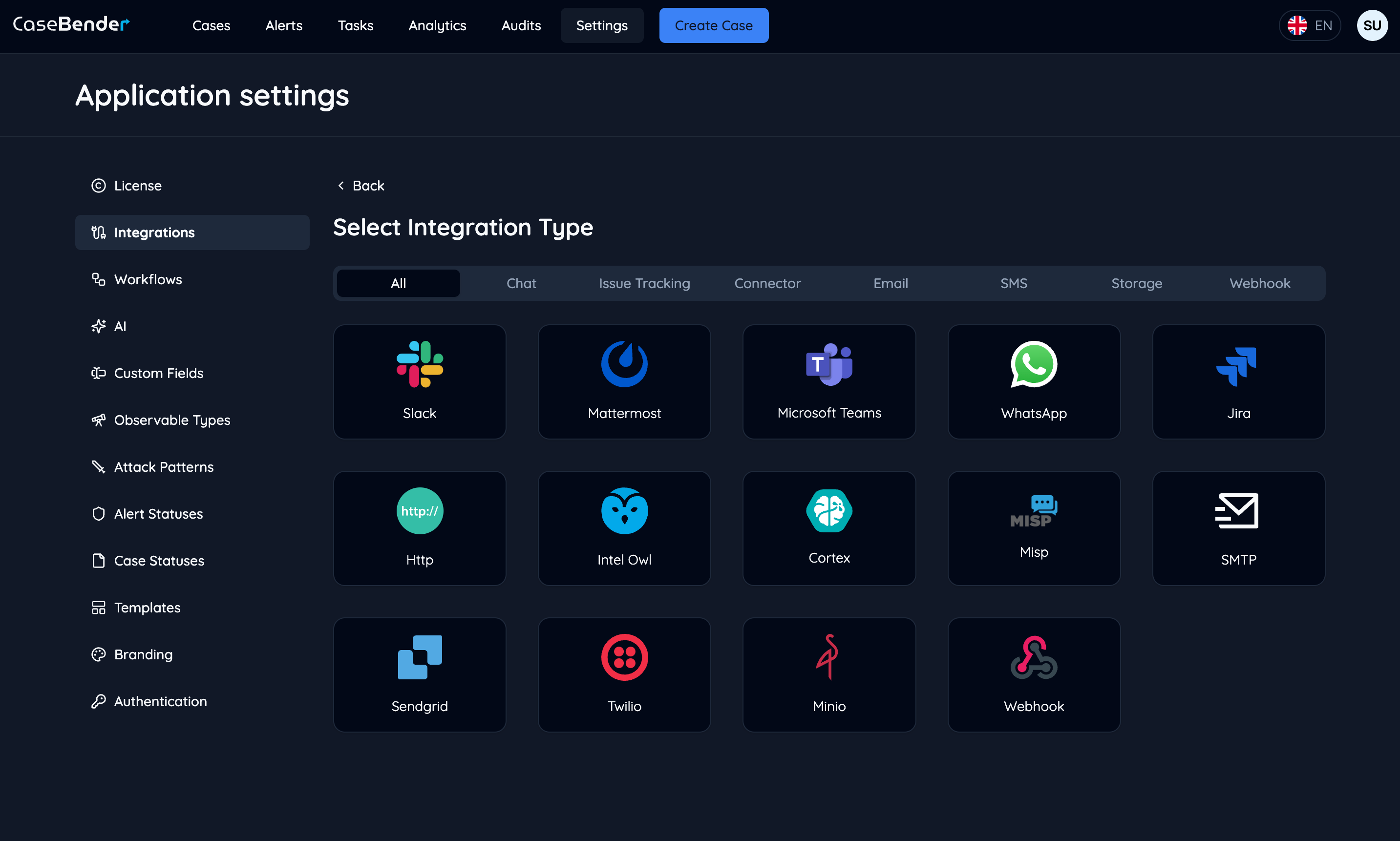
### ステップ1：統合タイプの選択

ダッシュボードから「作成」ボタンをクリックして、利用可能な統合オプションを表示します：

<img className="block dark:hidden h-96 object-cover w-full rounded-lg" src="https://mintcdn.com/casebender/RRGoSvw2T8G-a0Id/images/settings/integrations/card-list--light.png?fit=max&auto=format&n=RRGoSvw2T8G-a0Id&q=85&s=9fe35da677450f0609ed1158c68dc0ef" alt="利用可能な統合（ライト）" width="2866" height="1722" data-path="images/settings/integrations/card-list--light.png" />

<img className="hidden dark:block h-96 object-cover w-full rounded-lg" src="https://mintcdn.com/casebender/RRGoSvw2T8G-a0Id/images/settings/integrations/card-list--dark.png?fit=max&auto=format&n=RRGoSvw2T8G-a0Id&q=85&s=68f132bb198f693cccd468e04c8ad289" alt="利用可能な統合（ダーク）" width="2866" height="1722" data-path="images/settings/integrations/card-list--dark.png" />

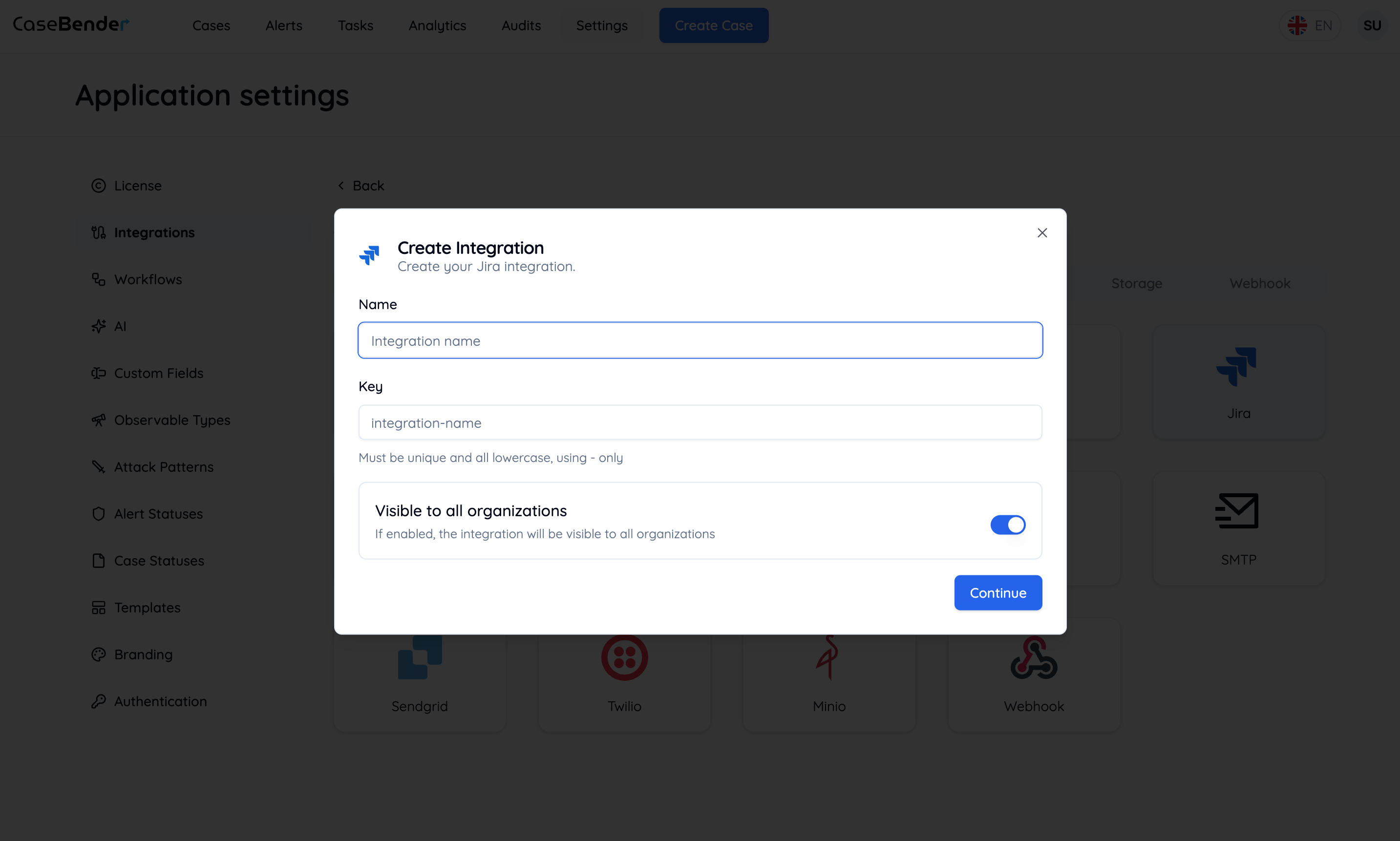
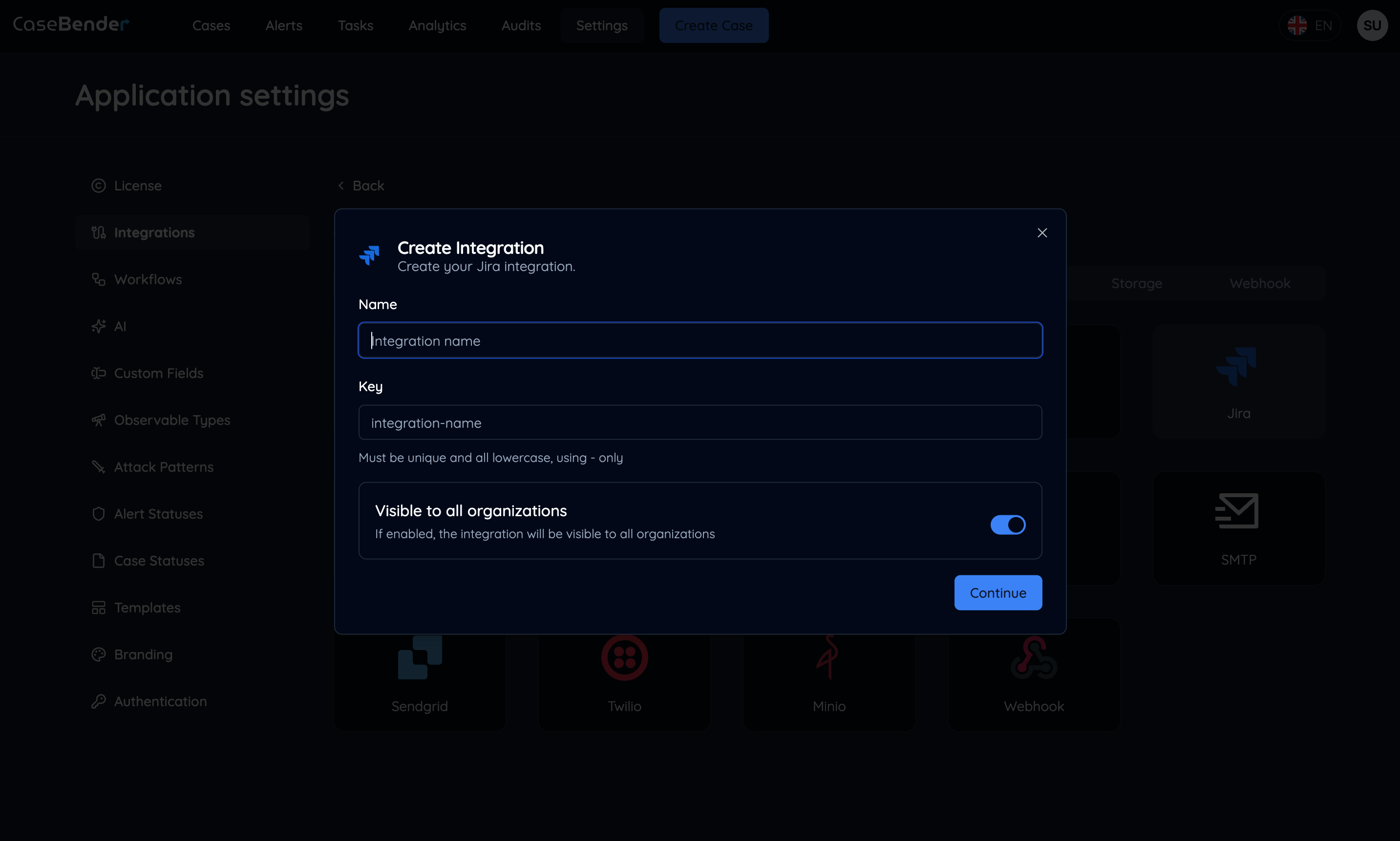
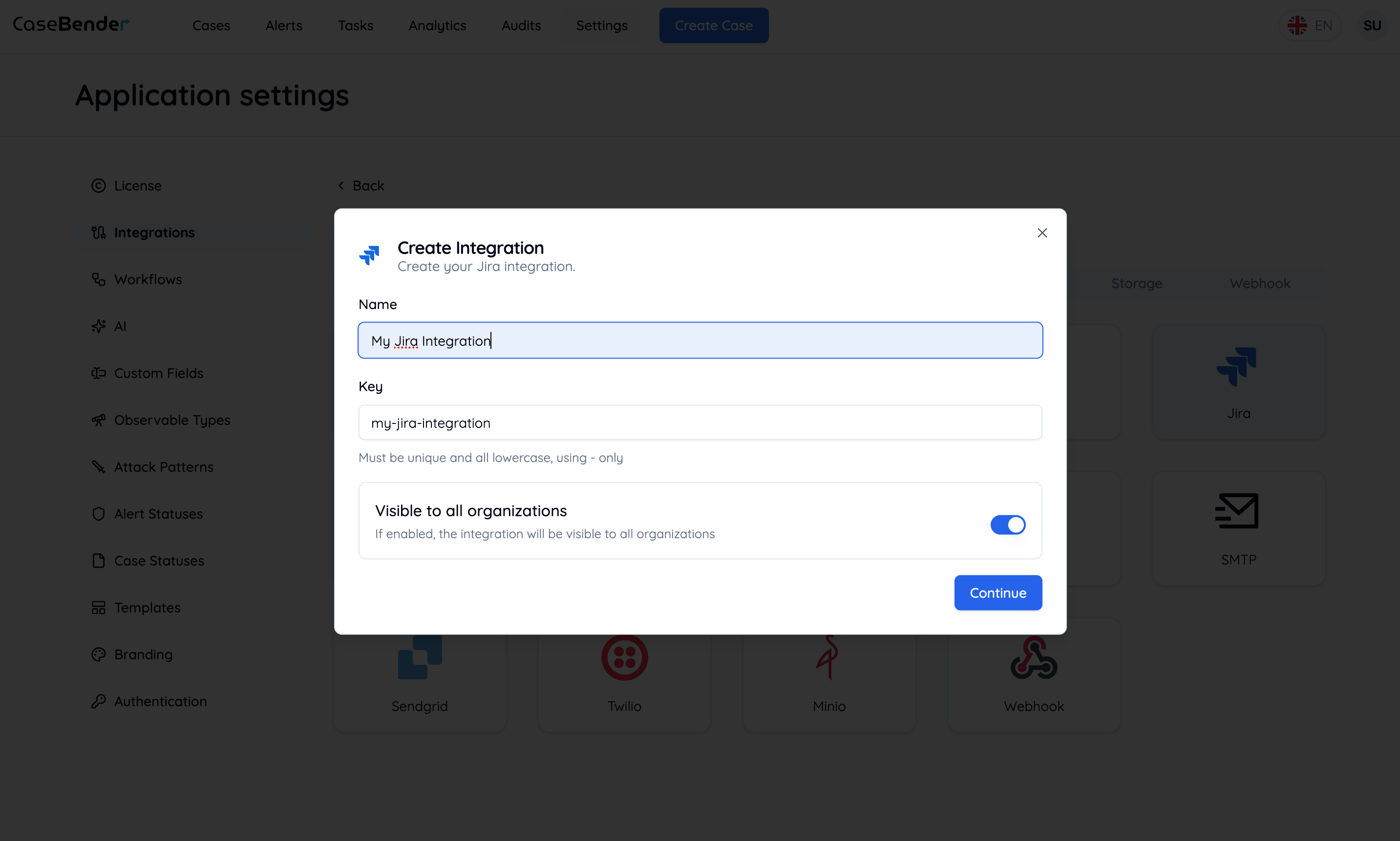
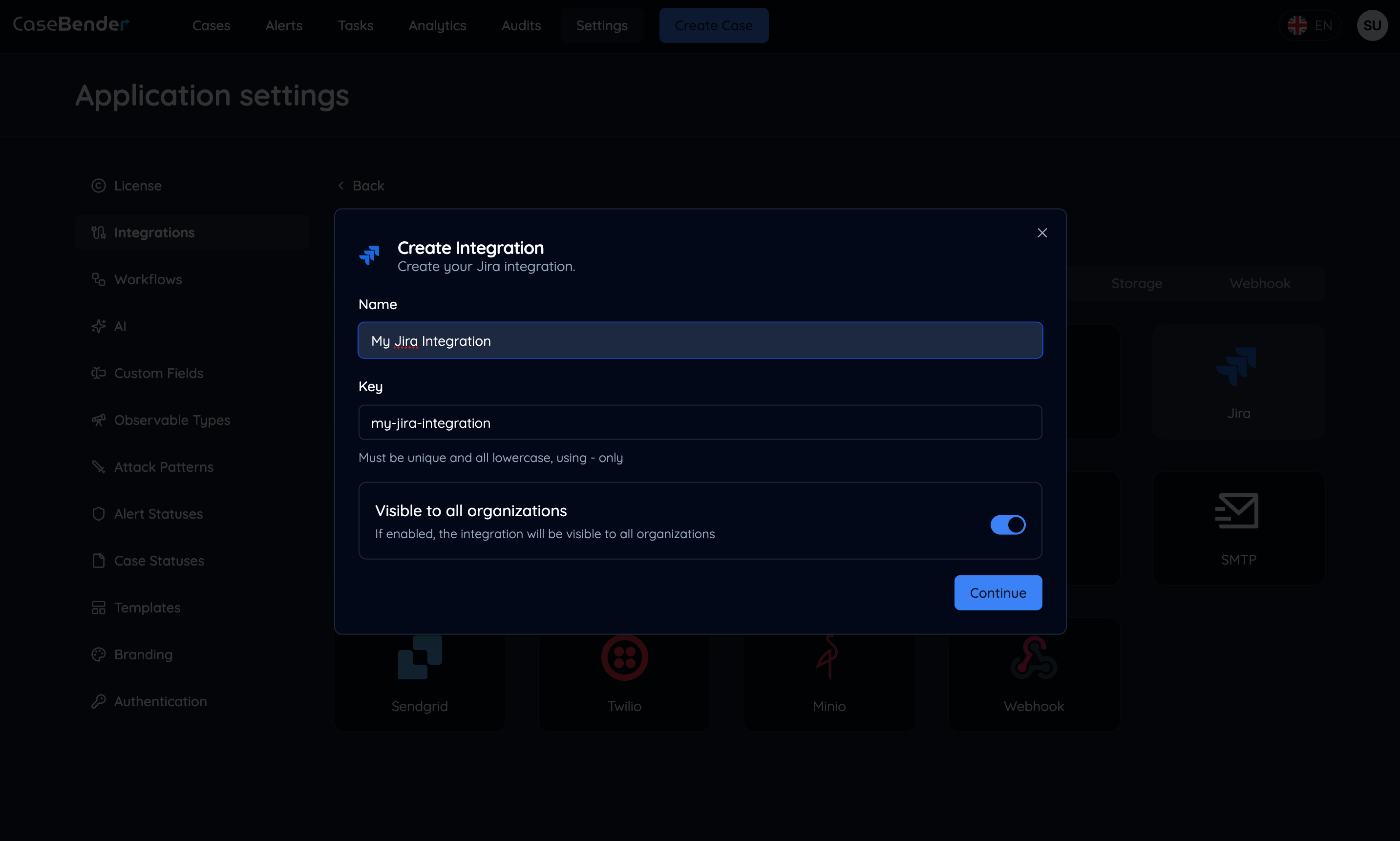
### ステップ2：基本設定

統合タイプを選択すると、統合設定フォームが表示されます：

<img className="block dark:hidden h-96 object-cover w-full rounded-lg" src="https://mintcdn.com/casebender/RRGoSvw2T8G-a0Id/images/settings/integrations/create-form--light.png?fit=max&auto=format&n=RRGoSvw2T8G-a0Id&q=85&s=b52bb0e575270c4da9fabf4fd1172824" alt="統合フォーム（ライト）" width="2866" height="1722" data-path="images/settings/integrations/create-form--light.png" />

<img className="hidden dark:block h-96 object-cover w-full rounded-lg" src="https://mintcdn.com/casebender/RRGoSvw2T8G-a0Id/images/settings/integrations/create-form--dark.png?fit=max&auto=format&n=RRGoSvw2T8G-a0Id&q=85&s=b12d7067f3ce5b3eabe03e28fa5cb532" alt="統合フォーム（ダーク）" width="2866" height="1722" data-path="images/settings/integrations/create-form--dark.png" />

以下のような必要な情報を入力します：

* 統合名
* 説明
* 基本設定オプション
* 接続詳細

### ステップ3：詳細設定

統合タイプに固有の追加設定を構成します：

<img className="block dark:hidden h-96 object-cover w-full rounded-lg" src="https://mintcdn.com/casebender/kzW53TJunB3_tHaF/images/settings/integrations/create-form-full--light.png?fit=max&auto=format&n=kzW53TJunB3_tHaF&q=85&s=0208b682b47e0fd1f8bf45922919d3c9" alt="設定済みフォーム（ライト）" width="2866" height="1722" data-path="images/settings/integrations/create-form-full--light.png" />

<img className="hidden dark:block h-96 object-cover w-full rounded-lg" src="https://mintcdn.com/casebender/RRGoSvw2T8G-a0Id/images/settings/integrations/create-form-full--dark.png?fit=max&auto=format&n=RRGoSvw2T8G-a0Id&q=85&s=4cc6f5112471b62e796a26fa7dcaf26f" alt="設定済みフォーム（ダーク）" width="2866" height="1722" data-path="images/settings/integrations/create-form-full--dark.png" />

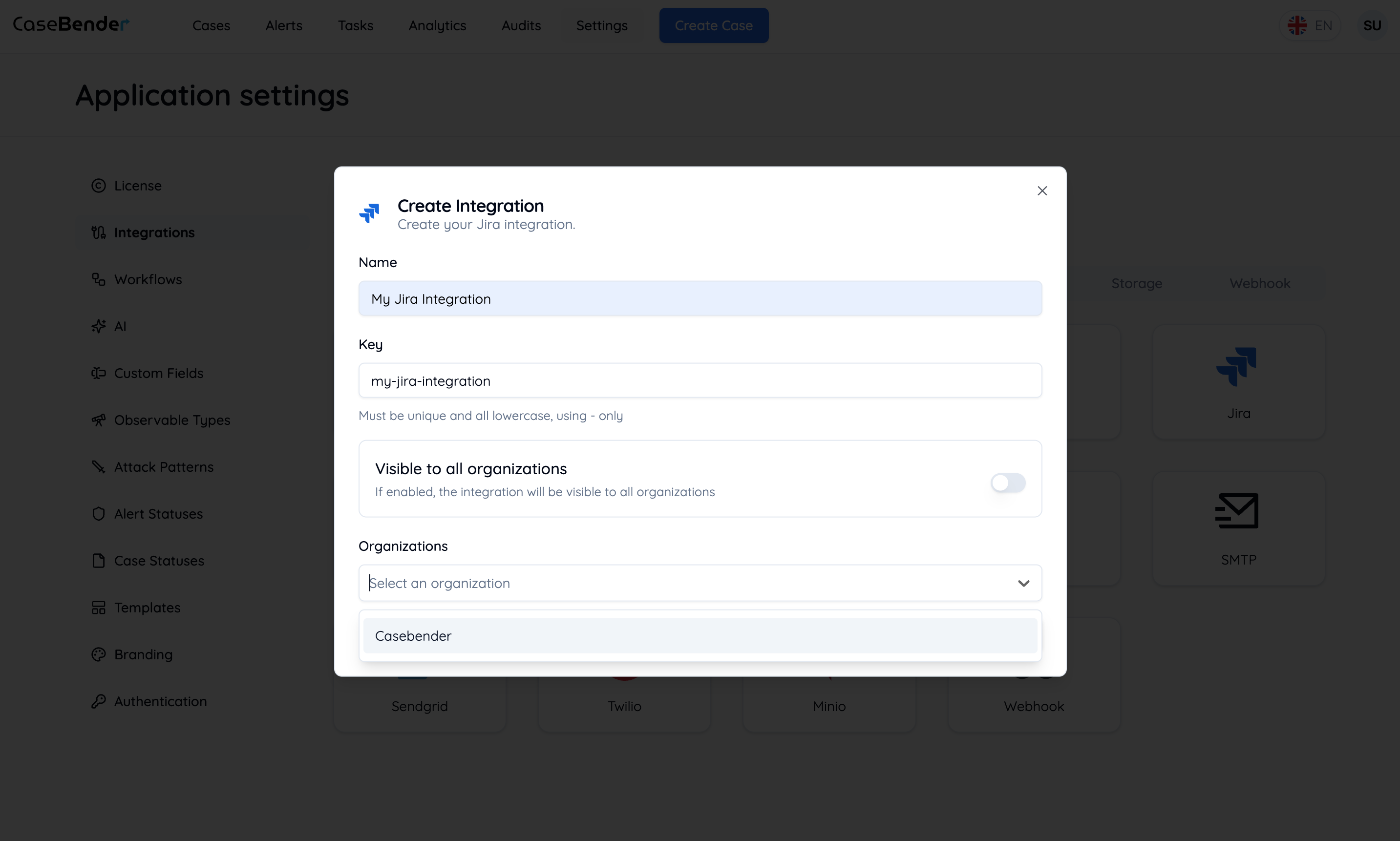
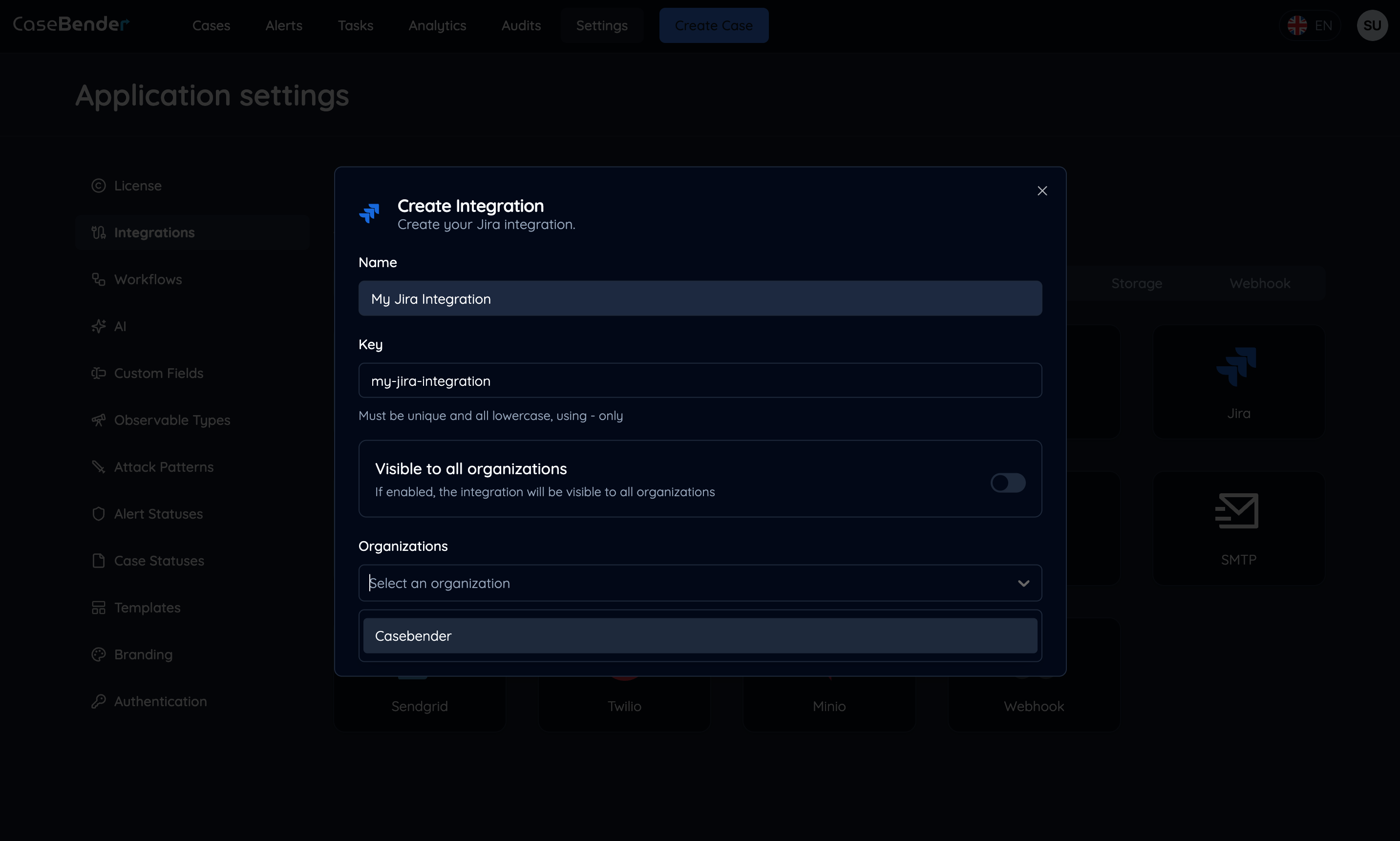
### ステップ4：組織設定

この統合にアクセスできる組織を指定します：

<img className="block dark:hidden h-96 object-cover w-full rounded-lg" src="https://mintcdn.com/casebender/kzW53TJunB3_tHaF/images/settings/integrations/create-form-org--light.png?fit=max&auto=format&n=kzW53TJunB3_tHaF&q=85&s=1239eec41f47c956b50dab9399de810c" alt="組織設定（ライト）" width="2866" height="1722" data-path="images/settings/integrations/create-form-org--light.png" />

<img className="hidden dark:block h-96 object-cover w-full rounded-lg" src="https://mintcdn.com/casebender/kzW53TJunB3_tHaF/images/settings/integrations/create-form-org--dark.png?fit=max&auto=format&n=kzW53TJunB3_tHaF&q=85&s=161d68611ea81ba4f744f982a93b636f" alt="組織設定（ダーク）" width="2866" height="1722" data-path="images/settings/integrations/create-form-org--dark.png" />

* 適用可能な組織を選択
* 組織固有の設定を行う
* アクセスレベルと権限を定義

### ステップ5：最終設定

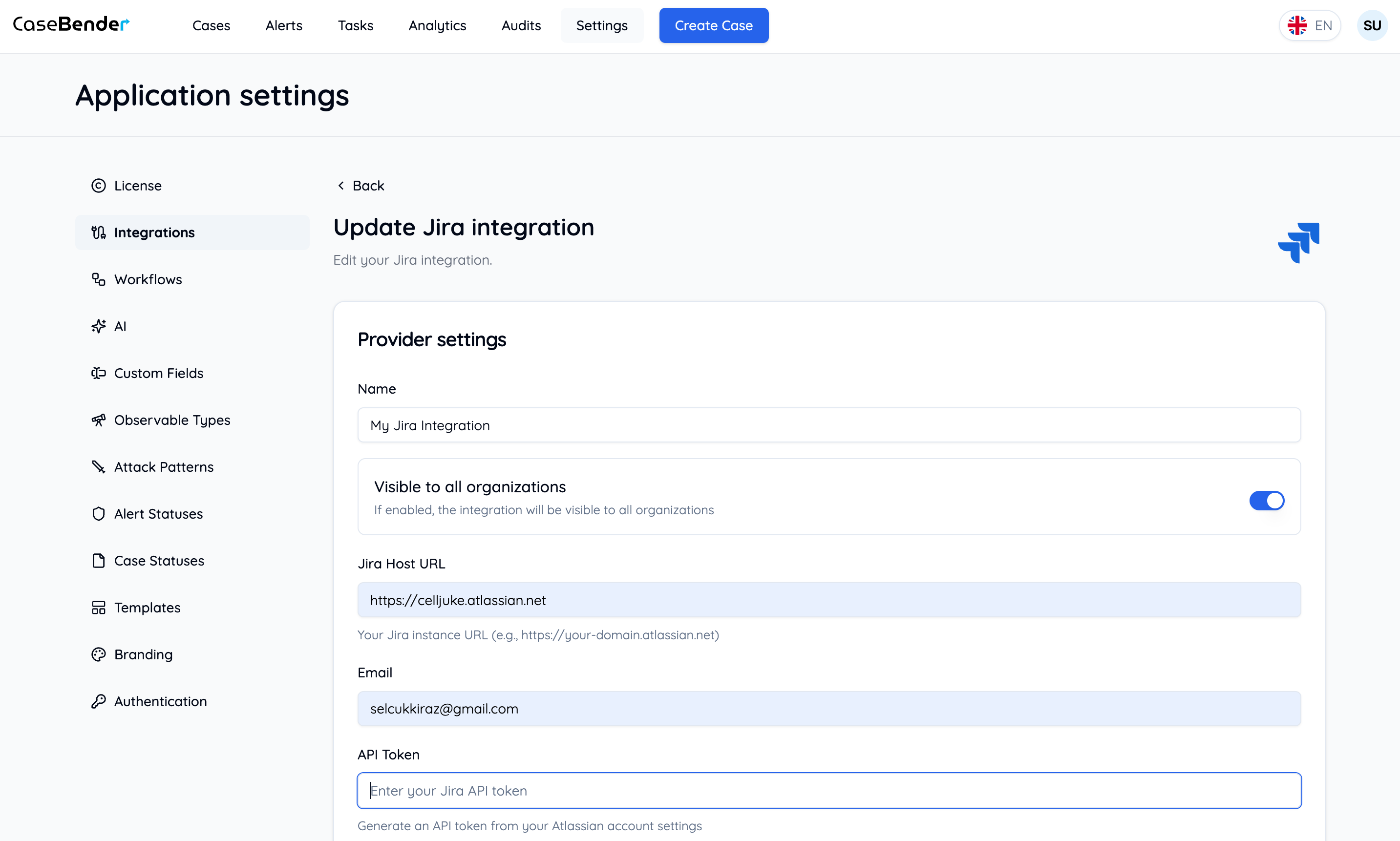
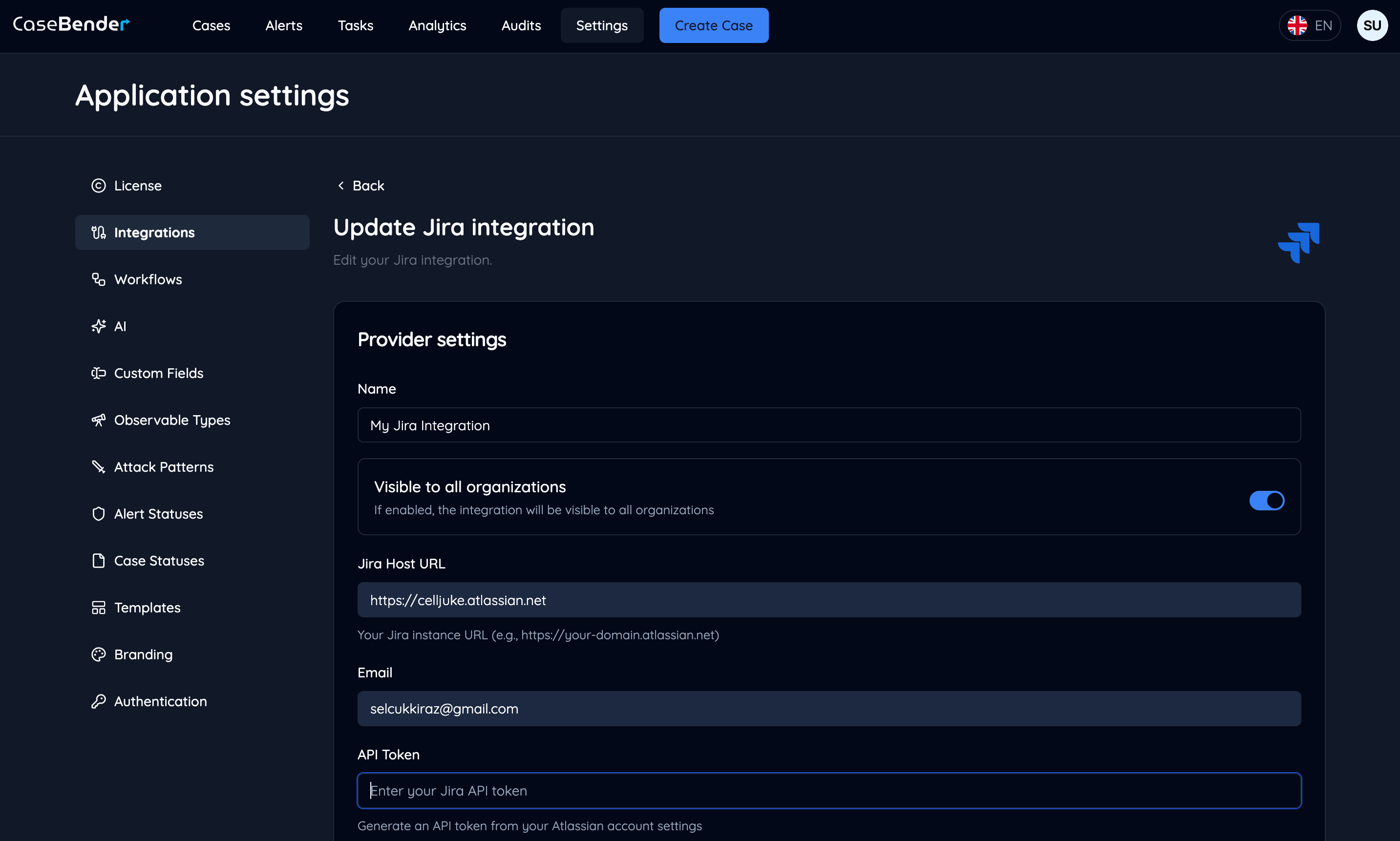
続行ボタンをクリックした後、最終設定ステップを完了します：

<img className="block dark:hidden h-96 object-cover w-full rounded-lg" src="https://mintcdn.com/casebender/kzW53TJunB3_tHaF/images/settings/integrations/update-form--light.png?fit=max&auto=format&n=kzW53TJunB3_tHaF&q=85&s=dd996b4ea2d7c48e6c1434af90aaa1e6" alt="最終設定（ライト）" width="2866" height="1722" data-path="images/settings/integrations/update-form--light.png" />

<img className="hidden dark:block h-96 object-cover w-full rounded-lg" src="https://mintcdn.com/casebender/kzW53TJunB3_tHaF/images/settings/integrations/update-form--dark.png?fit=max&auto=format&n=kzW53TJunB3_tHaF&q=85&s=832907d28a16dbb4963c28660401113b" alt="最終設定（ダーク）" width="2866" height="1722" data-path="images/settings/integrations/update-form--dark.png" />

* 高度な機能を設定
* 認証詳細を設定
* 設定を確認および検証
* 接続をテスト

## ベストプラクティス

### 統合のセットアップ

* 簡単に識別できる意味のある名前を選択
* 将来の参照のために詳細な説明を提供
* 確定前に接続をテスト
* カスタム設定を文書化

### セキュリティの考慮事項

* 安全な認証情報を使用
* 適切なアクセス制御を実装
* 定期的なセキュリティ監査
* 統合の使用状況をモニタリング

### メンテナンス

* 定期的に統合ステータスを確認
* 必要に応じて設定を更新
* パフォーマンスメトリクスをモニタリング
* ドキュメントを最新の状態に保つ