> ## Documentation Index
> Fetch the complete documentation index at: https://docs.casebender.com/llms.txt
> Use this file to discover all available pages before exploring further.

# 통합

> CaseBender 인스턴스에서 외부 서비스 및 시스템과의 통합 구성 및 관리.

## 개요

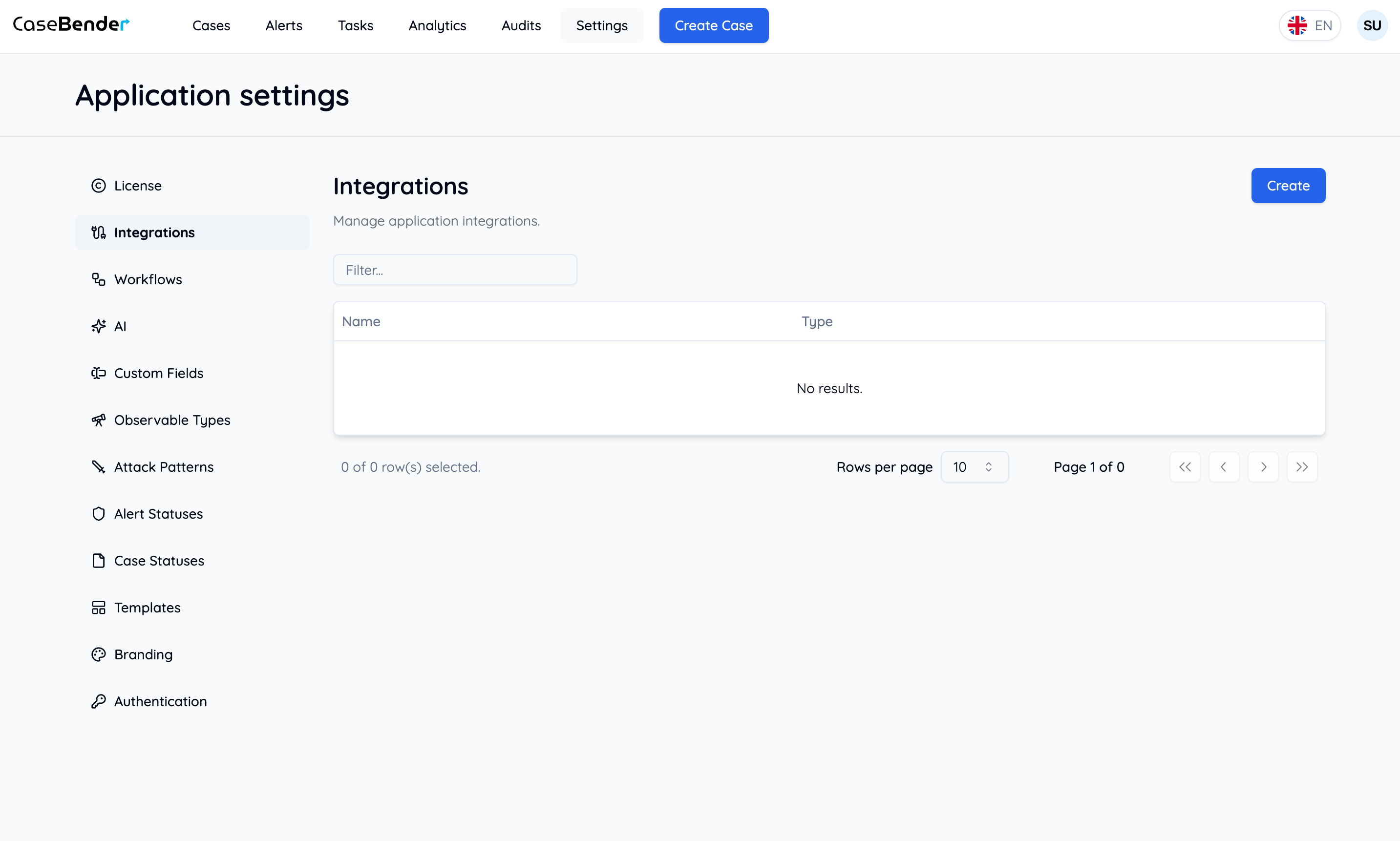
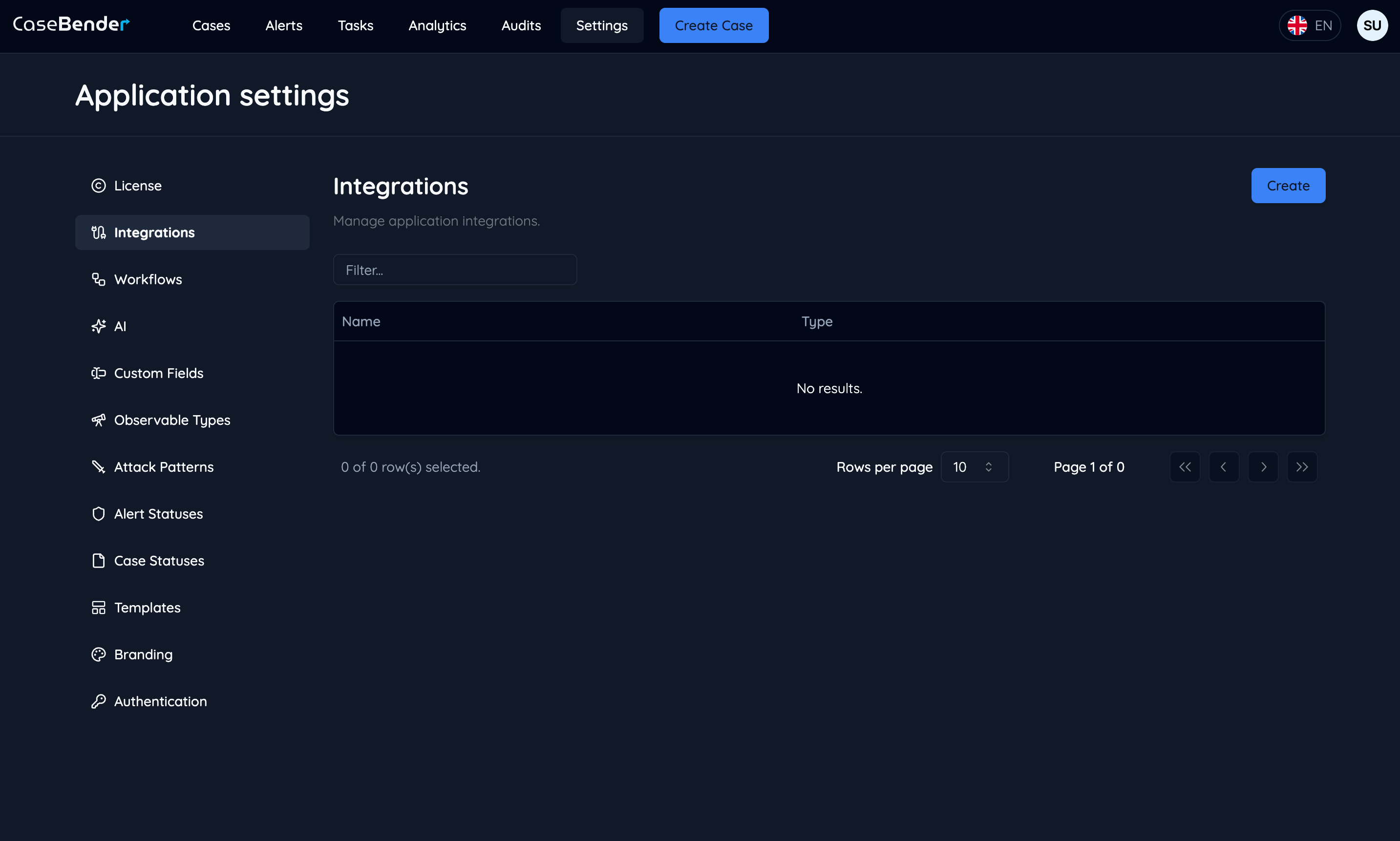
통합 설정 섹션에서는 CaseBender 워크플로우를 향상시키기 위해 다양한 외부 서비스와의 통합을 관리하고 생성할 수 있습니다. 이 가이드는 새로운 통합을 설정하는 과정을 안내합니다.
<img className="block dark:hidden h-96 object-cover w-full rounded-lg" src="https://mintcdn.com/casebender/kzW53TJunB3_tHaF/images/settings/integrations/dashboard--light.png?fit=max&auto=format&n=kzW53TJunB3_tHaF&q=85&s=2e2dff089371d33a0f9d12778abcc27e" alt="통합 대시보드 라이트" width="2866" height="1722" data-path="images/settings/integrations/dashboard--light.png" />

<img className="hidden dark:block h-96 object-cover w-full rounded-lg" src="https://mintcdn.com/casebender/kzW53TJunB3_tHaF/images/settings/integrations/dashboard--dark.png?fit=max&auto=format&n=kzW53TJunB3_tHaF&q=85&s=7181265719c17c7eeb8978a503b0a764" alt="통합 대시보드 다크" width="2866" height="1722" data-path="images/settings/integrations/dashboard--dark.png" />

## 새 통합 생성

### 1단계: 통합 유형 선택

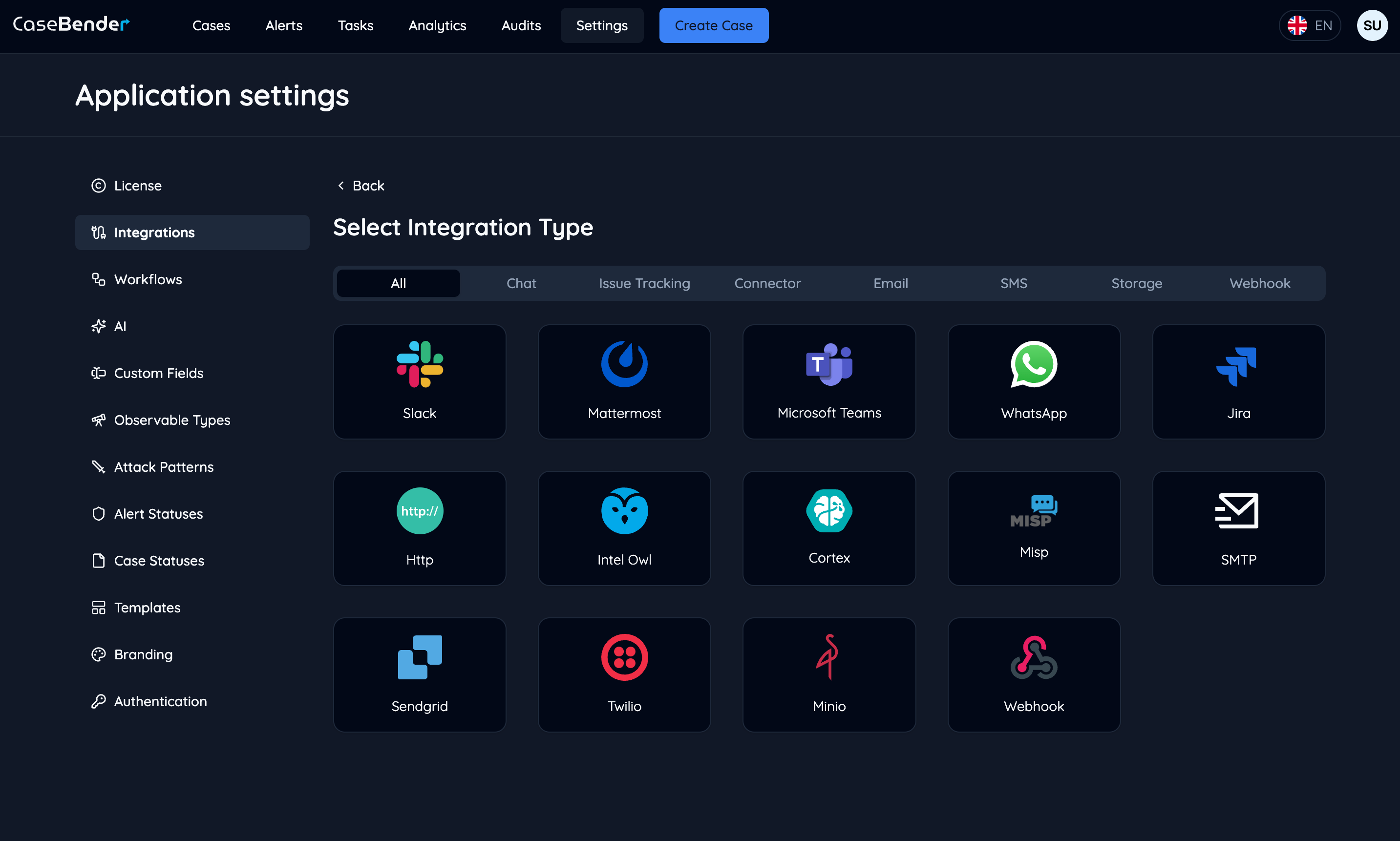
대시보드에서 "생성" 버튼을 클릭하여 사용 가능한 통합 옵션 확인:
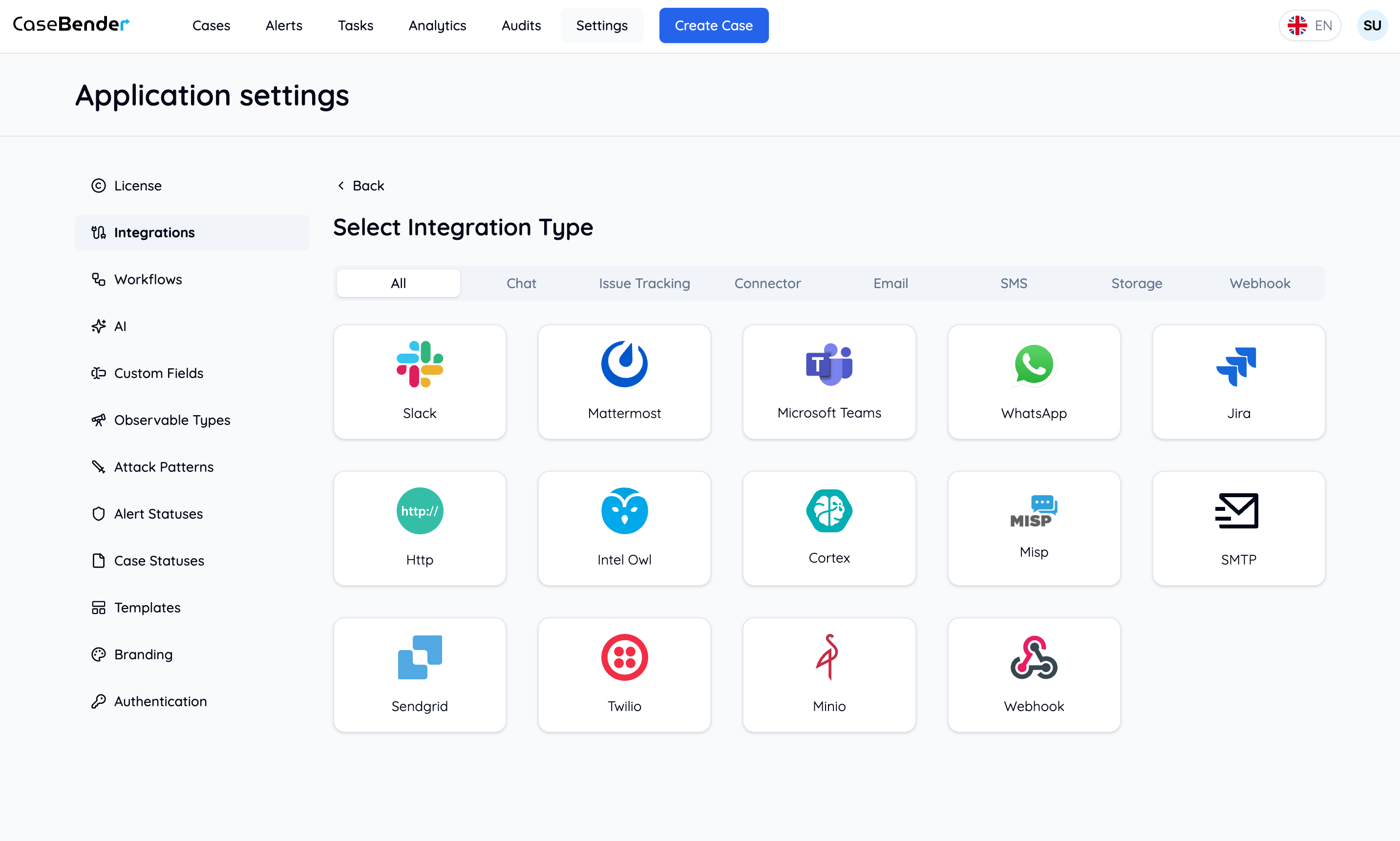
<img className="block dark:hidden h-96 object-cover w-full rounded-lg" src="https://mintcdn.com/casebender/RRGoSvw2T8G-a0Id/images/settings/integrations/card-list--light.png?fit=max&auto=format&n=RRGoSvw2T8G-a0Id&q=85&s=9fe35da677450f0609ed1158c68dc0ef" alt="사용 가능한 통합 라이트" width="2866" height="1722" data-path="images/settings/integrations/card-list--light.png" />

<img className="hidden dark:block h-96 object-cover w-full rounded-lg" src="https://mintcdn.com/casebender/RRGoSvw2T8G-a0Id/images/settings/integrations/card-list--dark.png?fit=max&auto=format&n=RRGoSvw2T8G-a0Id&q=85&s=68f132bb198f693cccd468e04c8ad289" alt="사용 가능한 통합 다크" width="2866" height="1722" data-path="images/settings/integrations/card-list--dark.png" />

### 2단계: 기본 구성

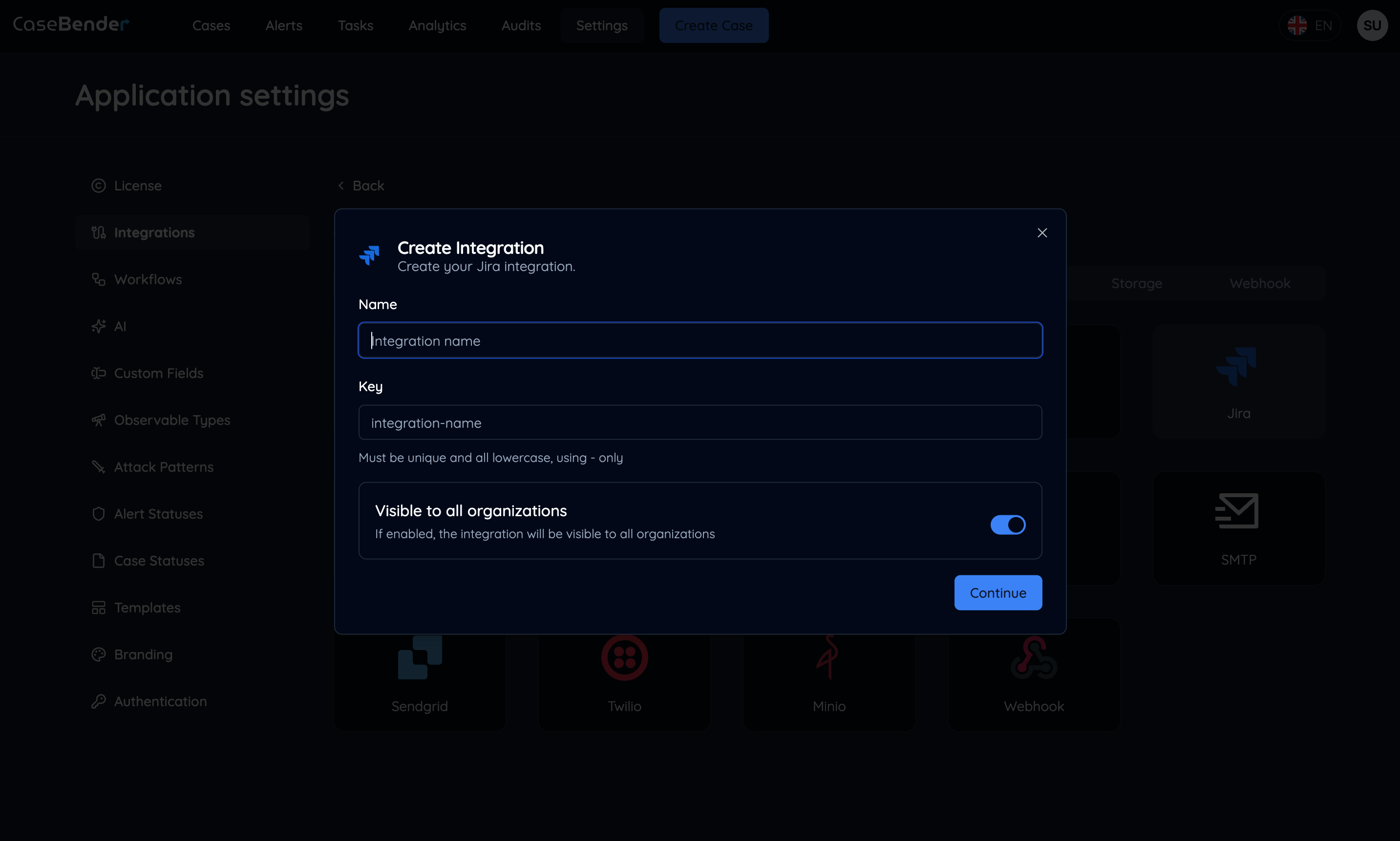
통합 유형을 선택한 후 통합 구성 양식이 표시됩니다:
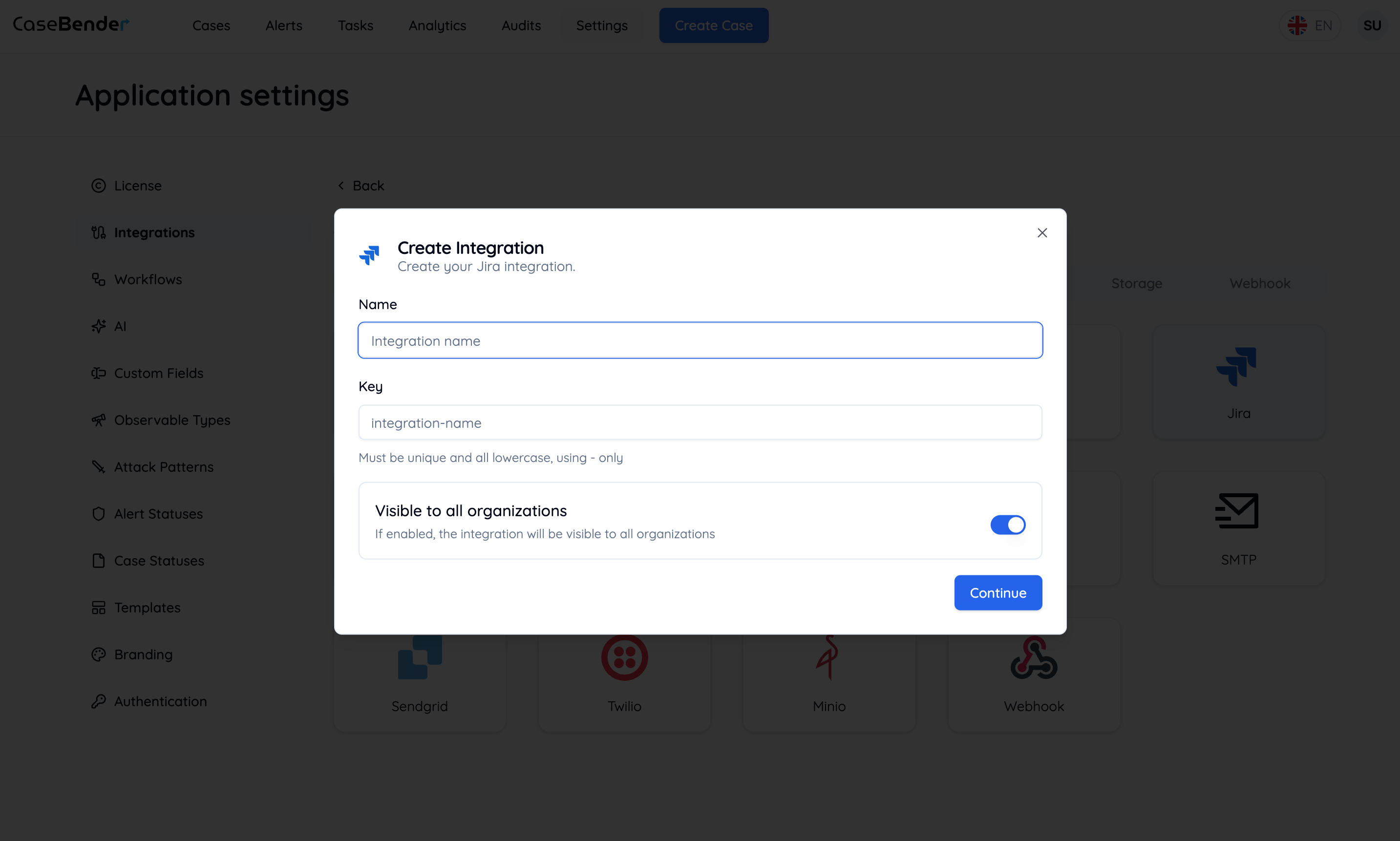
<img className="block dark:hidden h-96 object-cover w-full rounded-lg" src="https://mintcdn.com/casebender/RRGoSvw2T8G-a0Id/images/settings/integrations/create-form--light.png?fit=max&auto=format&n=RRGoSvw2T8G-a0Id&q=85&s=b52bb0e575270c4da9fabf4fd1172824" alt="통합 양식 라이트" width="2866" height="1722" data-path="images/settings/integrations/create-form--light.png" />

<img className="hidden dark:block h-96 object-cover w-full rounded-lg" src="https://mintcdn.com/casebender/RRGoSvw2T8G-a0Id/images/settings/integrations/create-form--dark.png?fit=max&auto=format&n=RRGoSvw2T8G-a0Id&q=85&s=b12d7067f3ce5b3eabe03e28fa5cb532" alt="통합 양식 다크" width="2866" height="1722" data-path="images/settings/integrations/create-form--dark.png" />

다음과 같은 필수 정보를 입력하세요:

* 통합 이름
* 설명
* 기본 구성 옵션
* 연결 세부 정보

### 3단계: 고급 설정

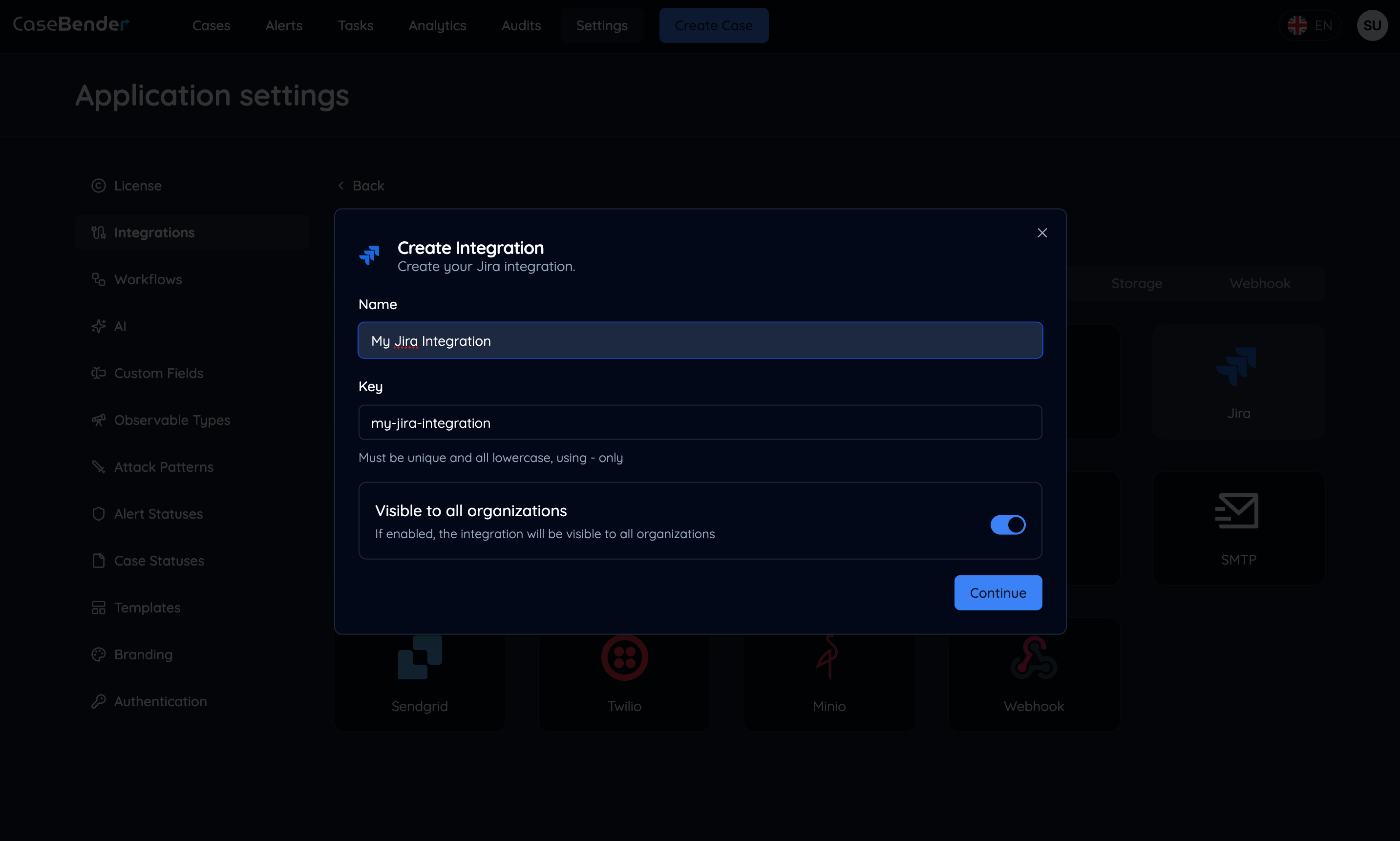
통합 유형에 특정한 추가 설정 구성:
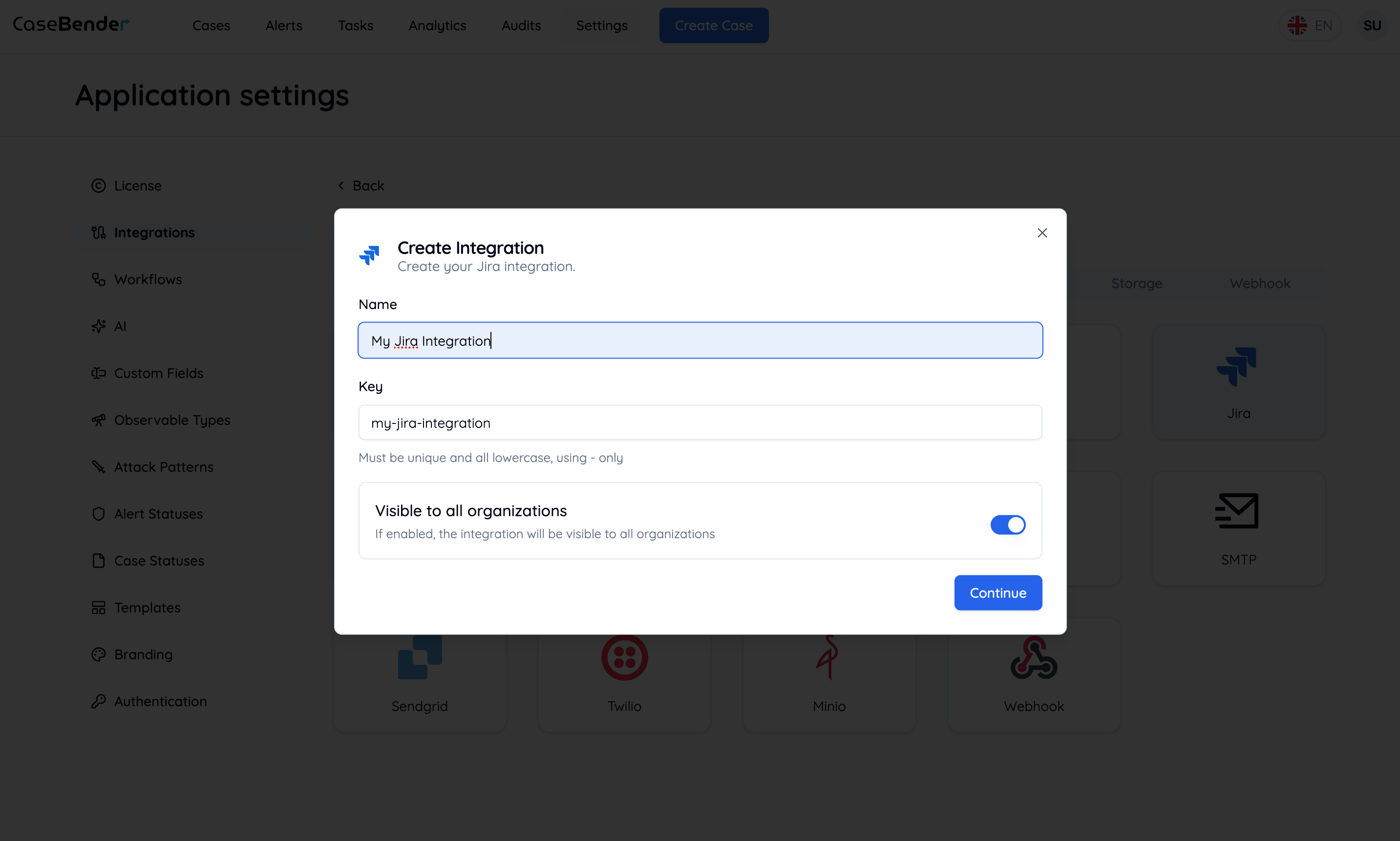
<img className="block dark:hidden h-96 object-cover w-full rounded-lg" src="https://mintcdn.com/casebender/kzW53TJunB3_tHaF/images/settings/integrations/create-form-full--light.png?fit=max&auto=format&n=kzW53TJunB3_tHaF&q=85&s=0208b682b47e0fd1f8bf45922919d3c9" alt="구성된 양식 라이트" width="2866" height="1722" data-path="images/settings/integrations/create-form-full--light.png" />

<img className="hidden dark:block h-96 object-cover w-full rounded-lg" src="https://mintcdn.com/casebender/RRGoSvw2T8G-a0Id/images/settings/integrations/create-form-full--dark.png?fit=max&auto=format&n=RRGoSvw2T8G-a0Id&q=85&s=4cc6f5112471b62e796a26fa7dcaf26f" alt="구성된 양식 다크" width="2866" height="1722" data-path="images/settings/integrations/create-form-full--dark.png" />

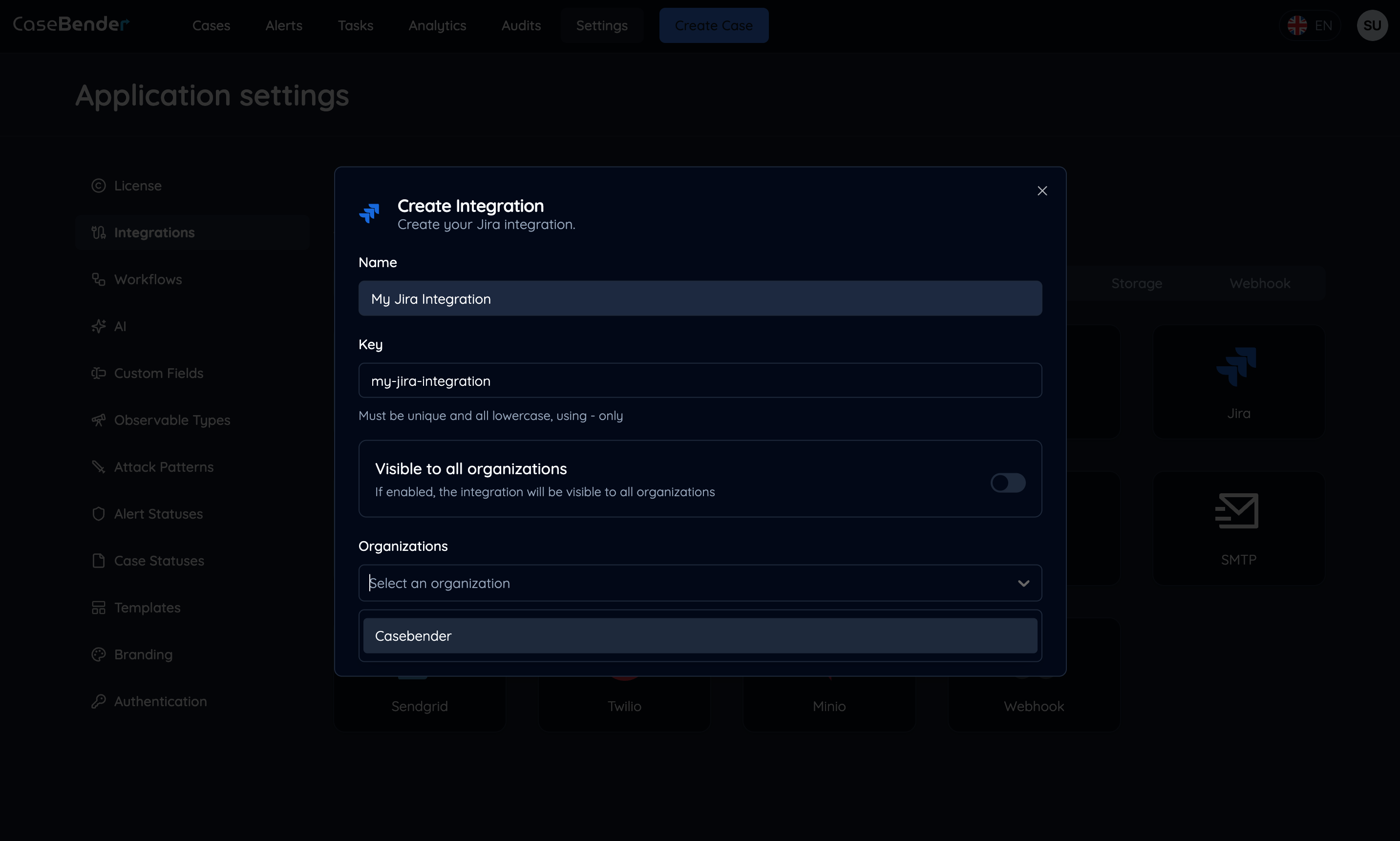
### 4단계: 조직 설정

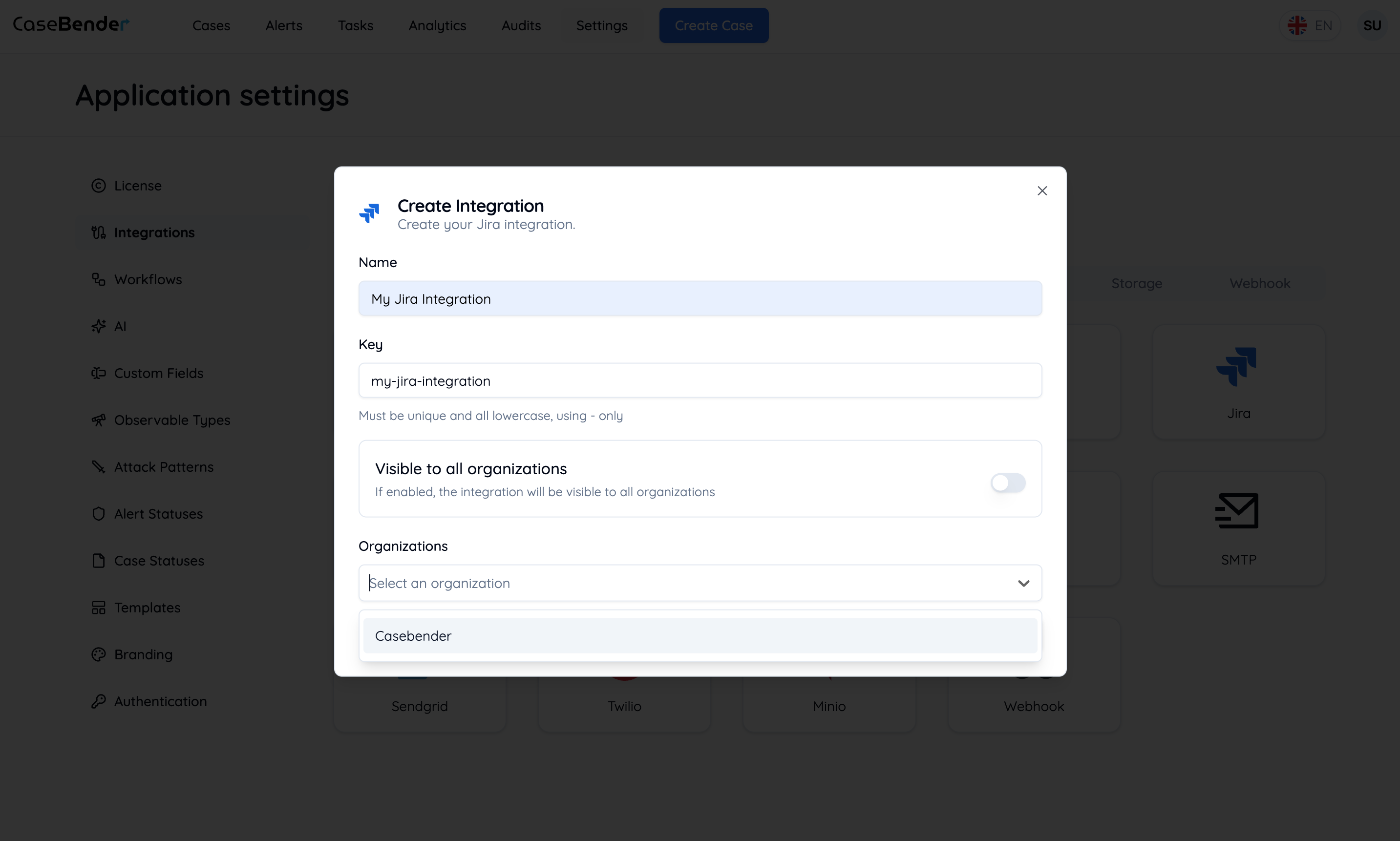
이 통합에 접근할 수 있는 조직 지정:

<img className="block dark:hidden h-96 object-cover w-full rounded-lg" src="https://mintcdn.com/casebender/kzW53TJunB3_tHaF/images/settings/integrations/create-form-org--light.png?fit=max&auto=format&n=kzW53TJunB3_tHaF&q=85&s=1239eec41f47c956b50dab9399de810c" alt="조직 설정 라이트" width="2866" height="1722" data-path="images/settings/integrations/create-form-org--light.png" />

<img className="hidden dark:block h-96 object-cover w-full rounded-lg" src="https://mintcdn.com/casebender/kzW53TJunB3_tHaF/images/settings/integrations/create-form-org--dark.png?fit=max&auto=format&n=kzW53TJunB3_tHaF&q=85&s=161d68611ea81ba4f744f982a93b636f" alt="조직 설정 다크" width="2866" height="1722" data-path="images/settings/integrations/create-form-org--dark.png" />

* 적용 가능한 조직 선택
* 조직별 구성 설정
* 접근 수준 및 권한 정의

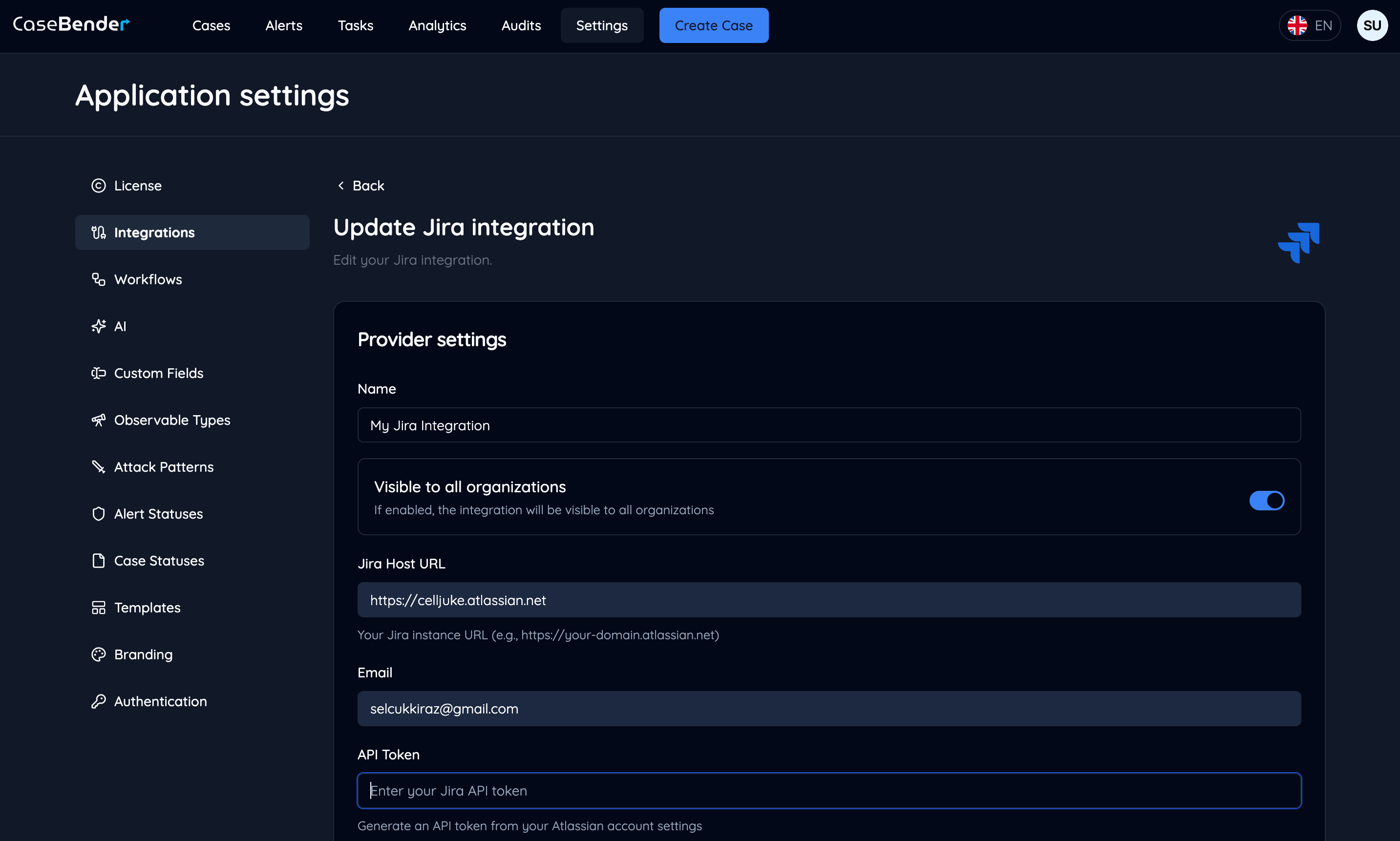
### 5단계: 최종 구성

계속 버튼을 클릭한 후 최종 구성 단계 완료:
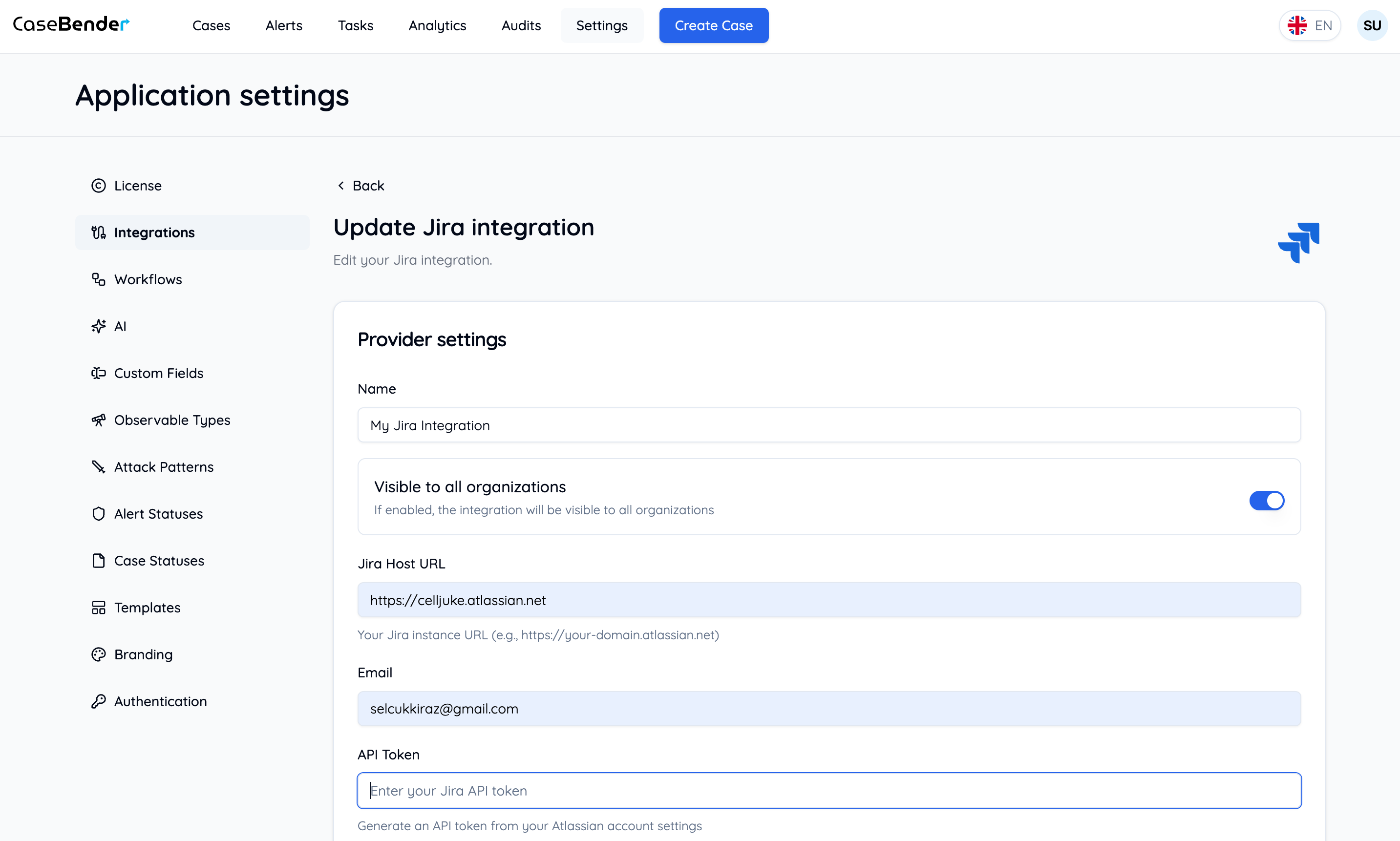
<img className="block dark:hidden h-96 object-cover w-full rounded-lg" src="https://mintcdn.com/casebender/kzW53TJunB3_tHaF/images/settings/integrations/update-form--light.png?fit=max&auto=format&n=kzW53TJunB3_tHaF&q=85&s=dd996b4ea2d7c48e6c1434af90aaa1e6" alt="최종 구성 라이트" width="2866" height="1722" data-path="images/settings/integrations/update-form--light.png" />

<img className="hidden dark:block h-96 object-cover w-full rounded-lg" src="https://mintcdn.com/casebender/kzW53TJunB3_tHaF/images/settings/integrations/update-form--dark.png?fit=max&auto=format&n=kzW53TJunB3_tHaF&q=85&s=832907d28a16dbb4963c28660401113b" alt="최종 구성 다크" width="2866" height="1722" data-path="images/settings/integrations/update-form--dark.png" />

* 고급 기능 구성
* 인증 세부 정보 설정
* 설정 검토 및 확인
* 연결 테스트

## 모범 사례

### 통합 설정

* 쉽게 식별할 수 있는 의미 있는 이름 선택
* 향후 참조를 위한 상세한 설명 제공
* 최종 확정 전 연결 테스트
* 사용자 정의 구성 문서화

### 보안 고려 사항

* 안전한 자격 증명 사용
* 적절한 접근 제어 구현
* 정기적인 보안 감사
* 통합 사용 모니터링

### 유지 관리

* 정기적으로 통합 상태 확인
* 필요에 따라 구성 업데이트
* 성능 지표 모니터링
* 문서 최신 상태 유지